Starting VideoCreation.info from Scratch with AI
In this first episode, I begin building VideoCreation.info from the very beginning and document my complete process as I go. This is not a polished, pre-packaged tutorial where everything is already finished. You will see the actual decisions, workflow, prompt experiments, and tools I use while building a real website with AI.
Tools & Resources I Use
Here are the core tools I rely on to organize my knowledge, prompt AI models, and publish live pages:
Build Your Private Vault
Your Obsidian vault is your command center for every website project. I use it as a single workspace to store my sitemaps, funnels, custom codes, AI prompts, brand identity, and resources before touching any page builder.
- 1Open Obsidian & Create a New Vault.Keep everything local on your computer so you retain total ownership of your knowledge base.
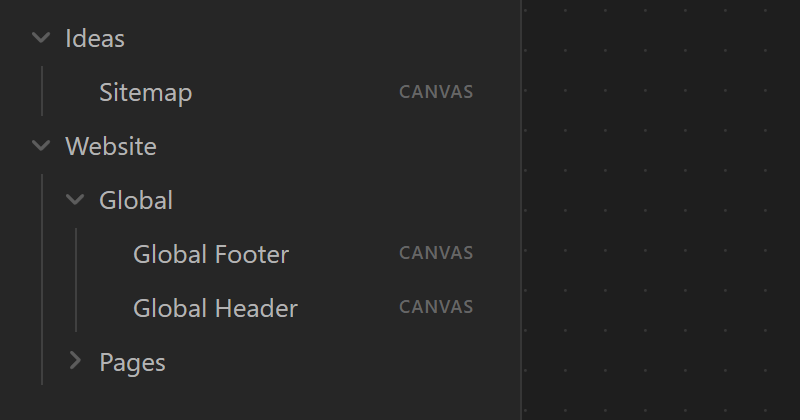
- 2Create the Ideas Folder & Sitemap Canvas.Inside your Ideas folder, create a canvas called Sitemap and write down your first page ideas.
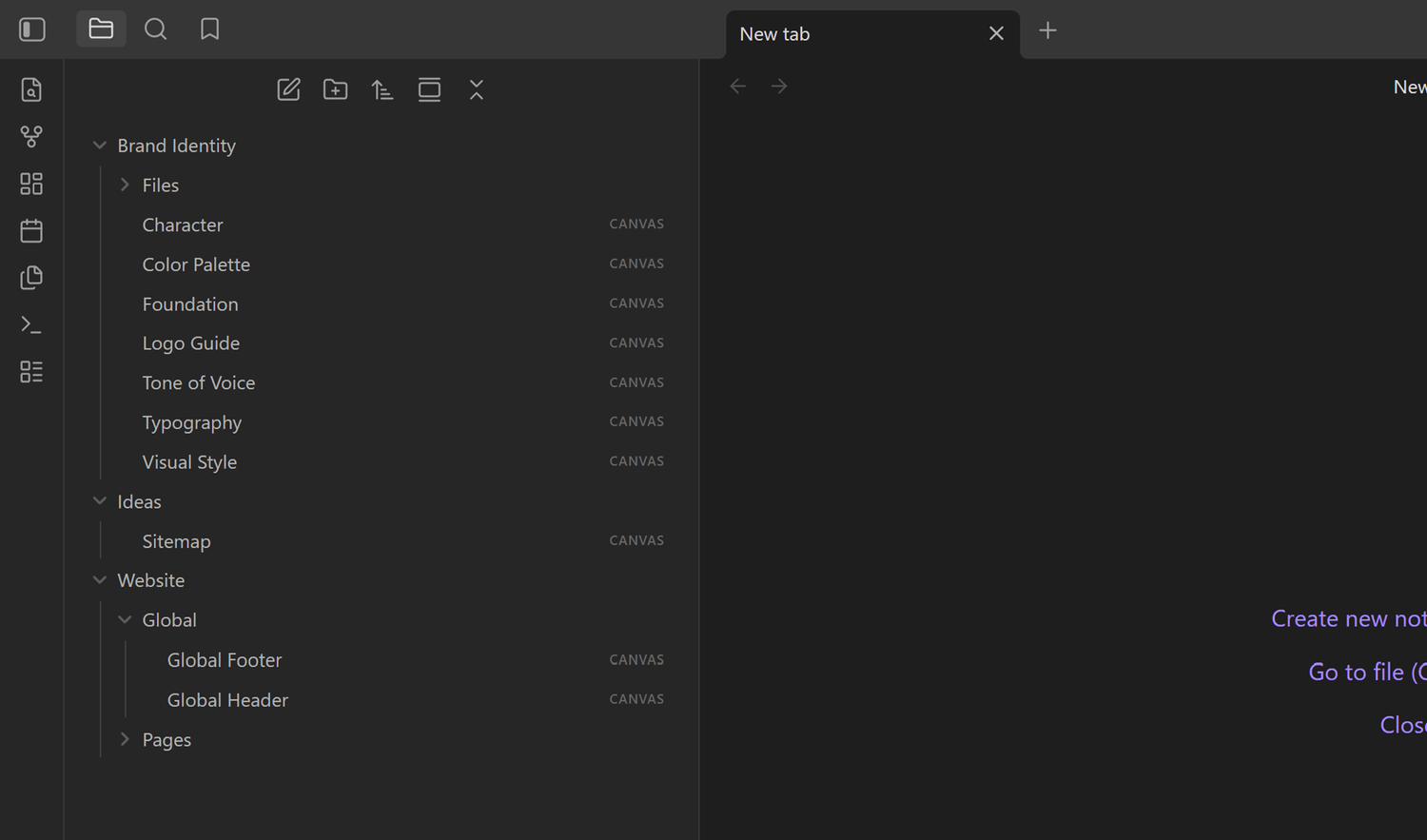
- 3Create the Website Folder & Global Canvases.Inside Website, create dedicated canvases for your Global Header and Global Footer. Write down your ideas for both.
- 4Organize into Global & Pages Folders.Create a folder called Global inside the Website folder, move both canvases into it, and then create a Pages folder for upcoming page notes.
The Sitemap Canvas
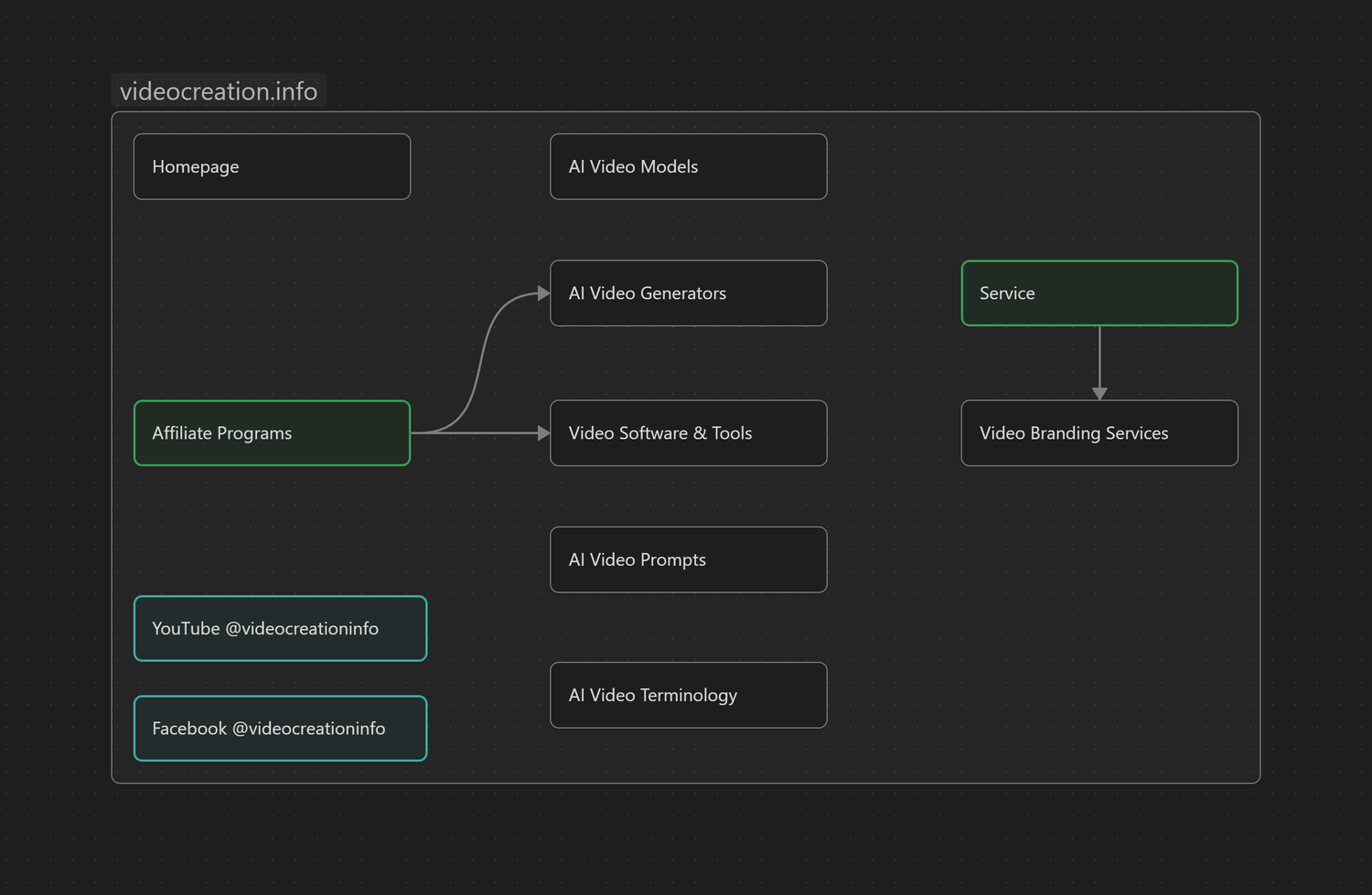
I map out the entire website visually before writing a single prompt or line of code.
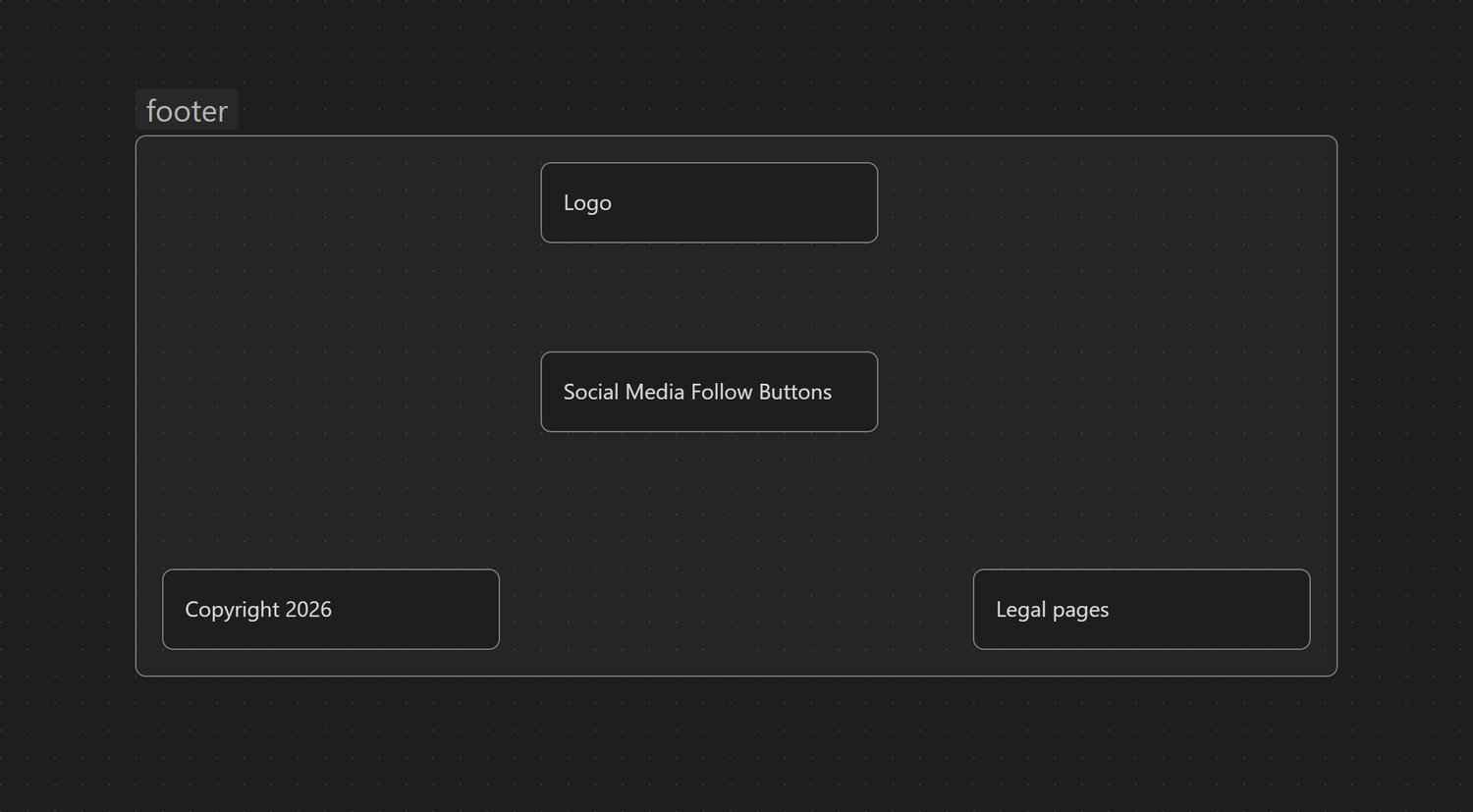
Global Header & Footer Canvases
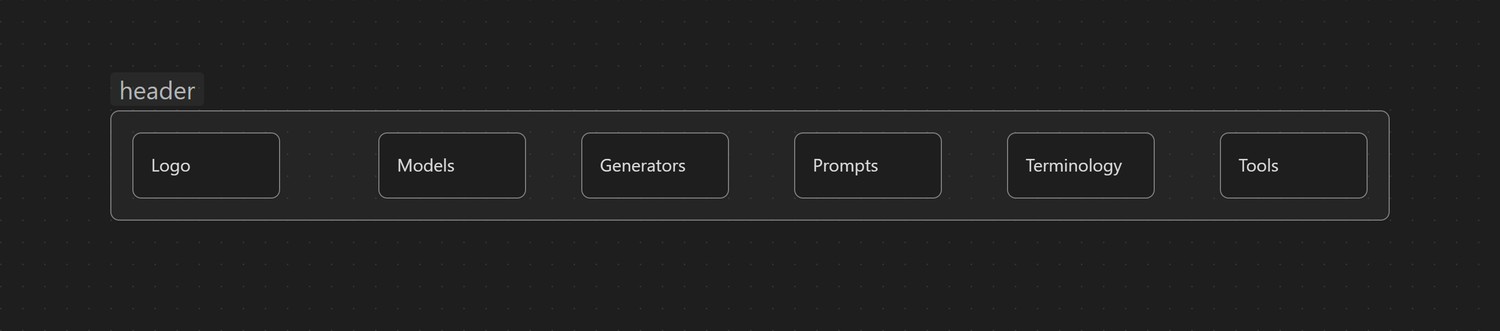
Here I map out navigation items, action buttons, branding rules, and copyright blocks.
Set Up Your Brand DNA
Before I start building the actual website, I first set up the Brand DNA. This gives the project a solid foundation before creating pages, layouts, sections, and content.
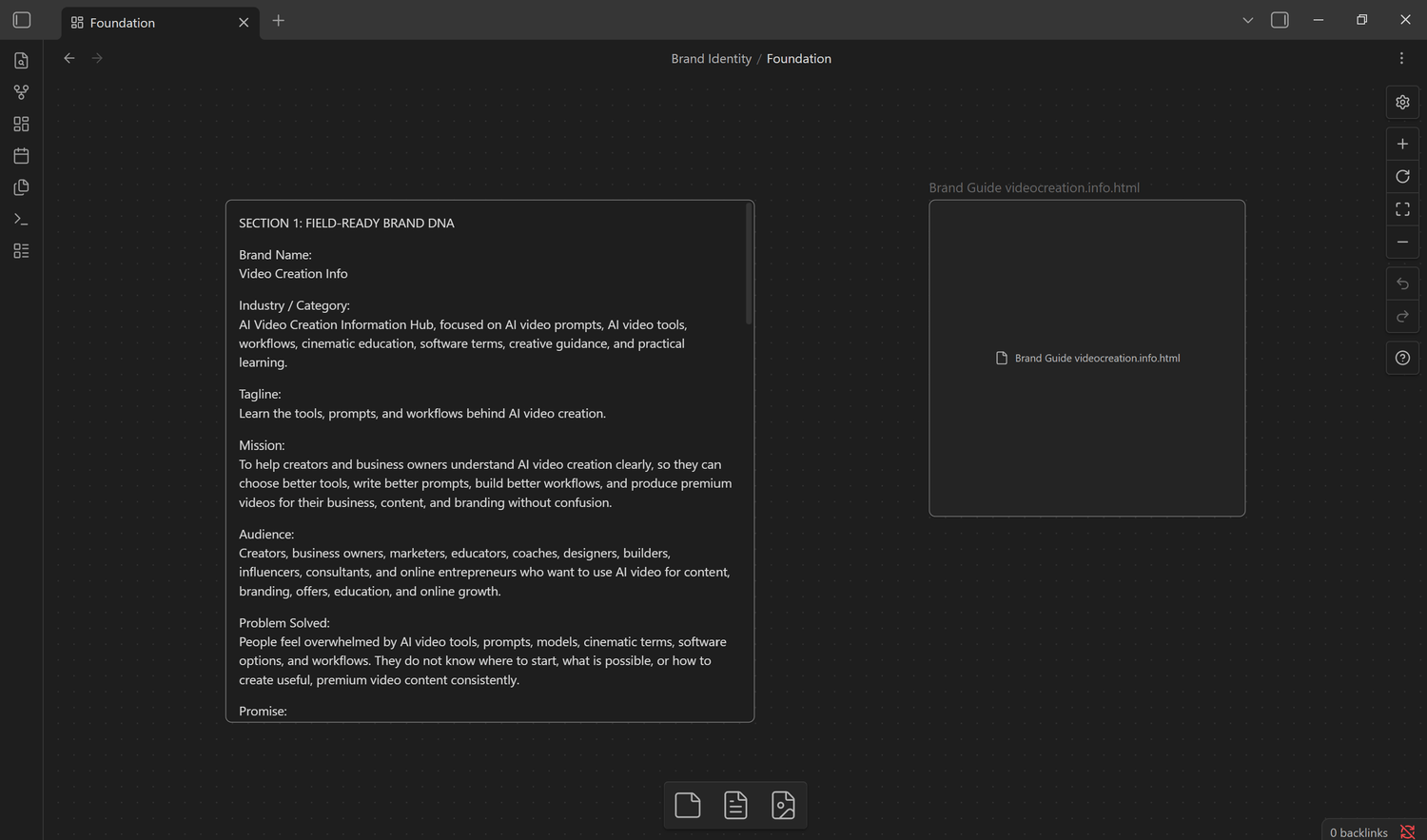
1. Foundation
The core direction of the brand, so the project has a clear starting point.
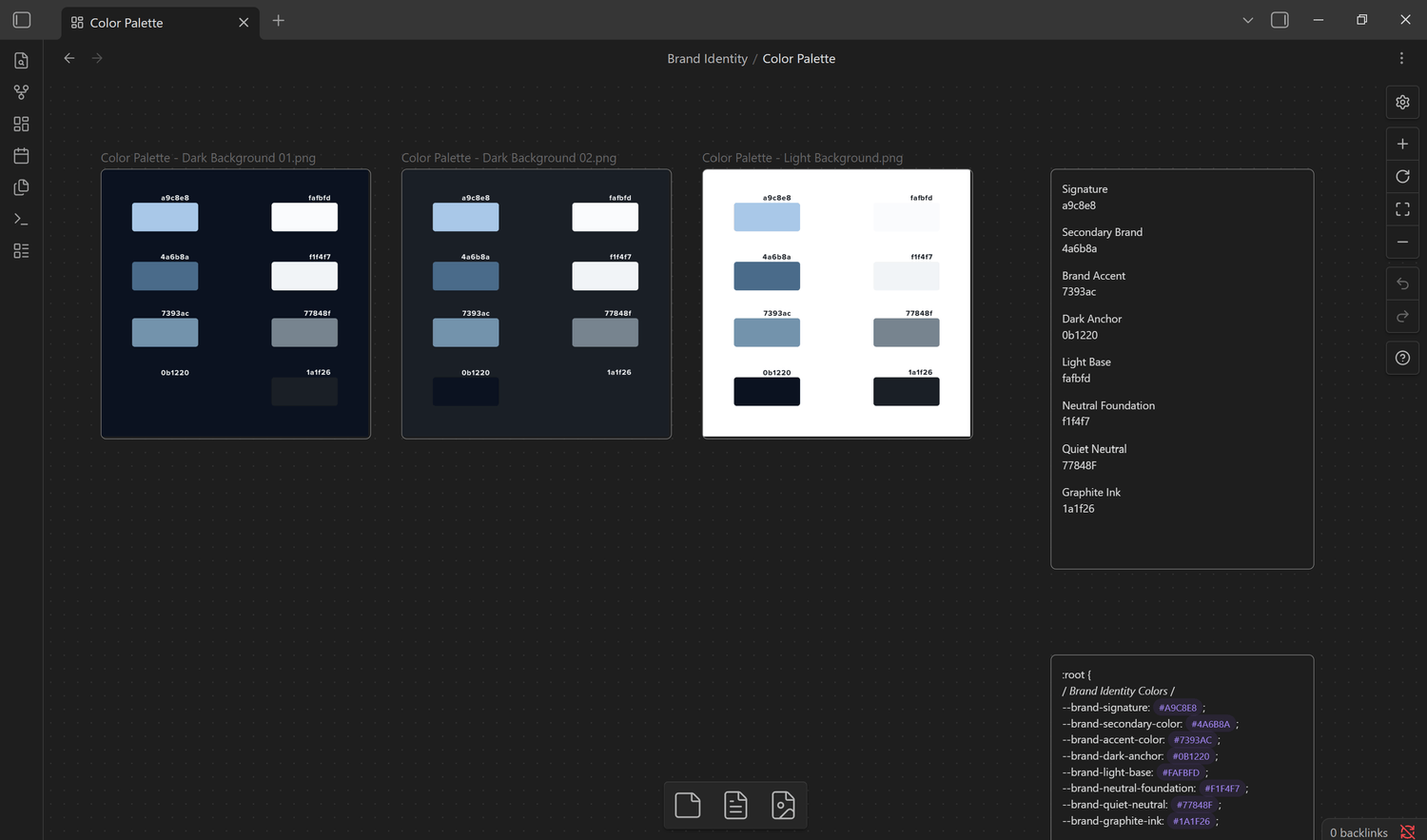
2. Color Palette
The main brand colors, including the CSS output, so the colors are ready to use later inside the website.
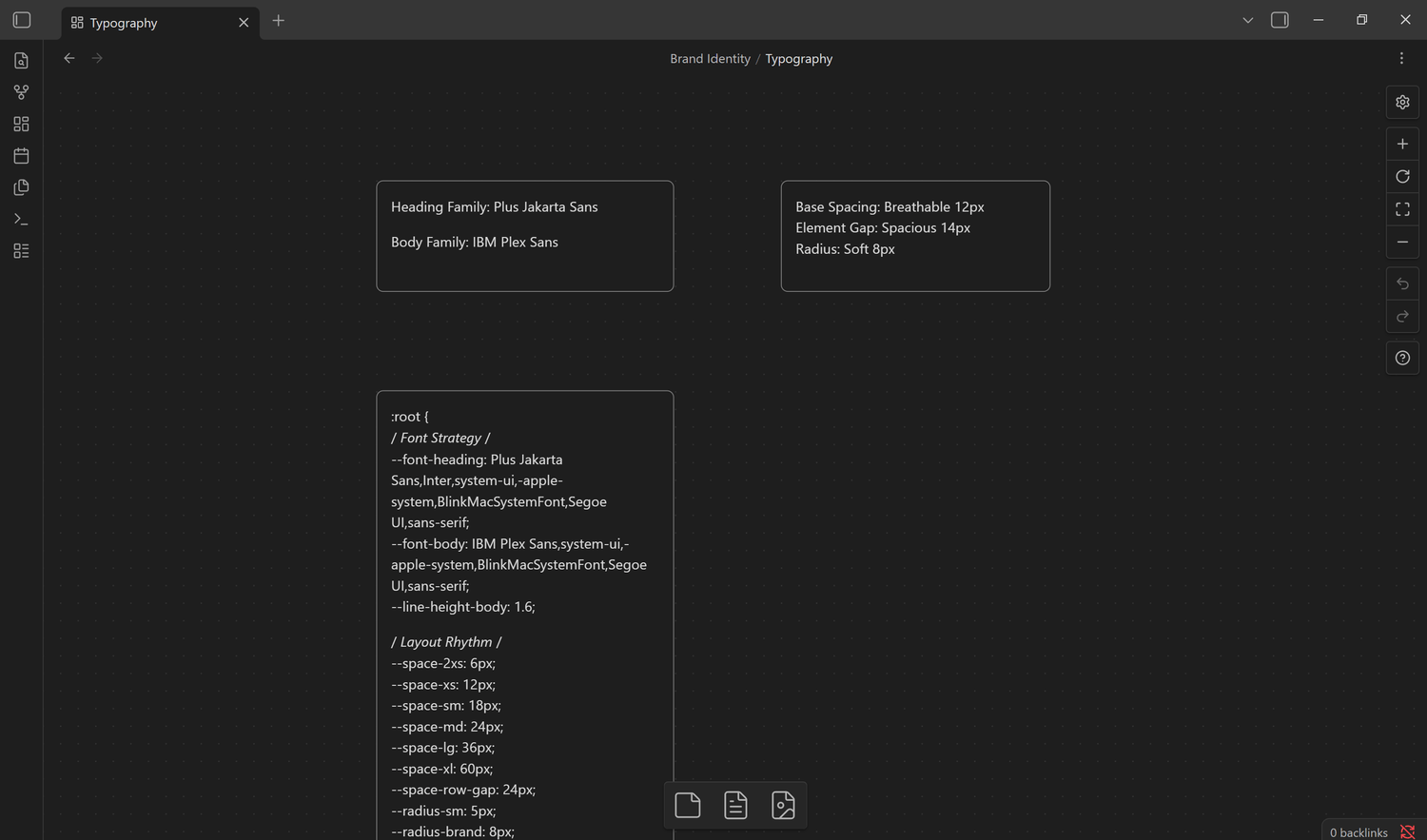
3. Typography
The heading and body fonts, including the CSS output, so the typography system is ready before building.
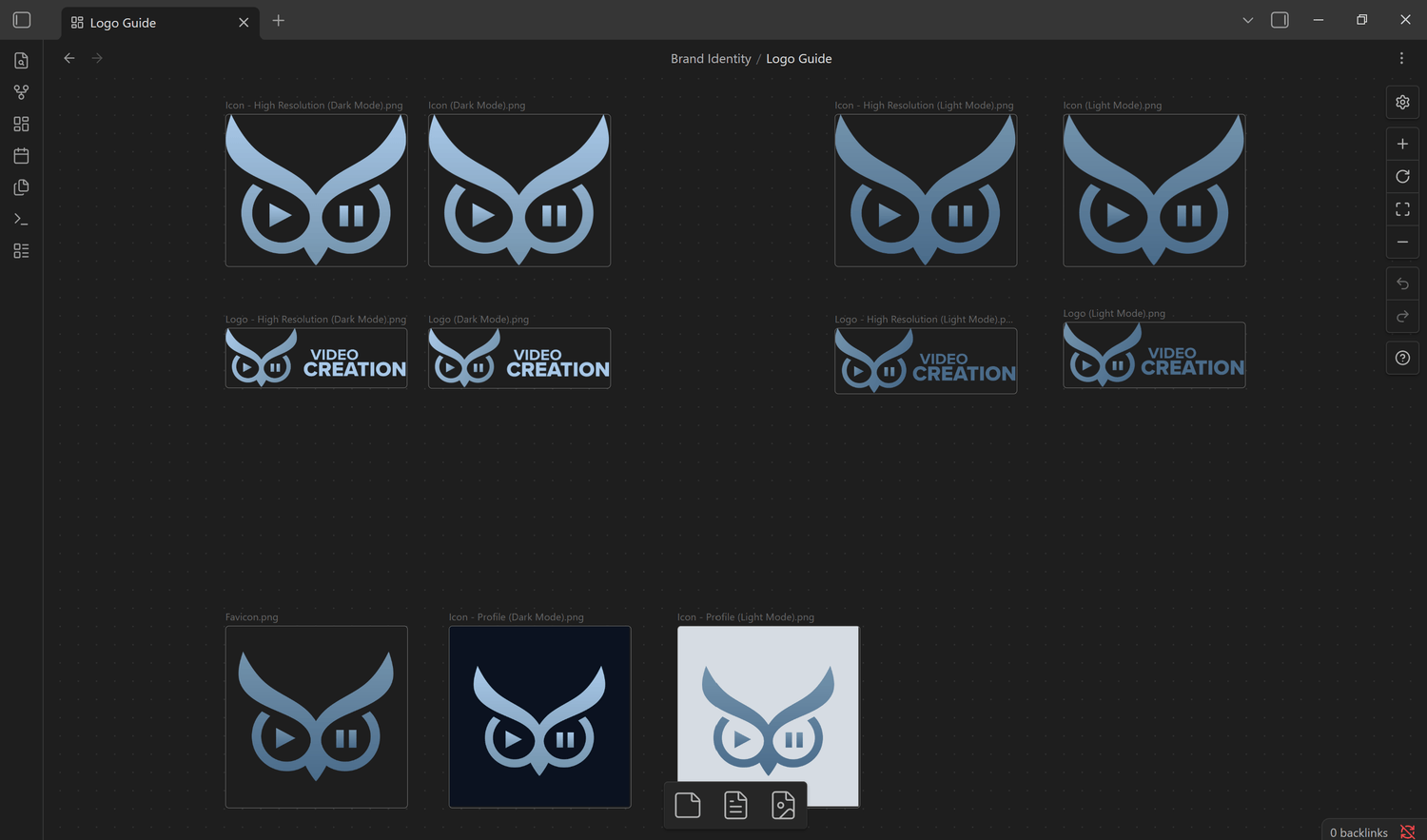
4. Logo Guide
The logo files, icon, wordmark, profile image, favicon, and light and dark versions, so the logo system can be used in different situations.
Organizing the Private Vault
The goal of this step is not to make everything perfect. The goal is to make the Brand DNA ready enough to start building the website with more clarity.
Build the Header & Footer
The foundation is ready. Now it is time to start building videocreation.info. Here I show you how I move from planning inside my private Vault to building the first global parts of the website: the header and footer.
Instead of starting with random sections, we first prepare the structure, pages, links, and code locations. That makes the entire building process much faster and easier.
What you will learn in this step:
- 1Create the main website pages inside Systeme.io.Set up the empty pages to establish their URLs and structure.
- 2Collect the page links before building navigation.Gather your clean URLs so your menus and buttons can be linked immediately.
- 3Add direct editing links to the private Vault.Store one-click links inside Obsidian to jump straight into the Systeme.io page editors.
- 4Update the sitemap with the new website structure.Map each live page directly onto the visual canvas.
- 5Prepare dedicated Global Header & Global Footer pages.Create dedicated workspace pages to test and tweak code without affecting live content.
- 6Use the Blog Layout for site-wide consistency.Display the header and footer globally across all pages and blog posts automatically.
- 7Start with ready-made code from SIO Vault.Never start from a blank screen. Grab ready-to-use raw HTML code straight from SIO Vault.
- 8Use Gemini to transform code into your branding.Feed your Brand DNA tokens to Gemini to adapt colors, typography, and links.
- 9Test & refine inside the HTML editor.Review desktop and mobile responsiveness instantly using live preview.
- 10Add finished code to the Blog Layout.Paste the tested code into the Blog Layout and see it live across the site.
- 11Save the final code inside the private Vault.Archive the clean code back into Obsidian as your permanent source of truth.
Private Vault Update
During this step, I also expand the private Vault so it becomes the central workspace for the website.
Website Pages
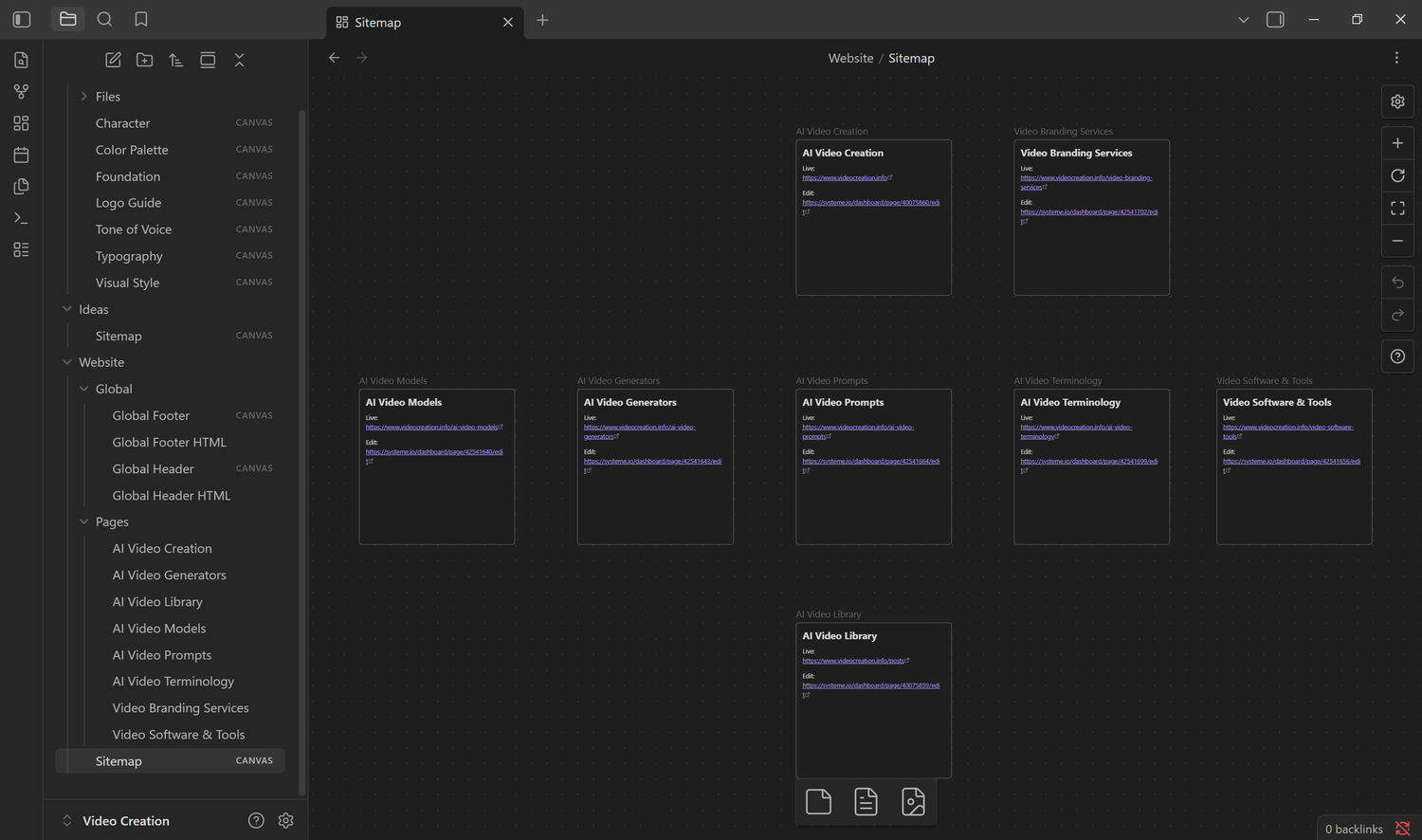
Each main website page now has its own note inside the Vault. Inside these notes, I save:
- The live page link.
- The direct Systeme.io editing link.
- Page ideas and content.
- Prompts used to build the page.
- Final code and future updates.
This means you never have to search through Systeme.io every time you want to edit something. You can open your private Vault, choose the page, and go directly to the editor.
Sitemap
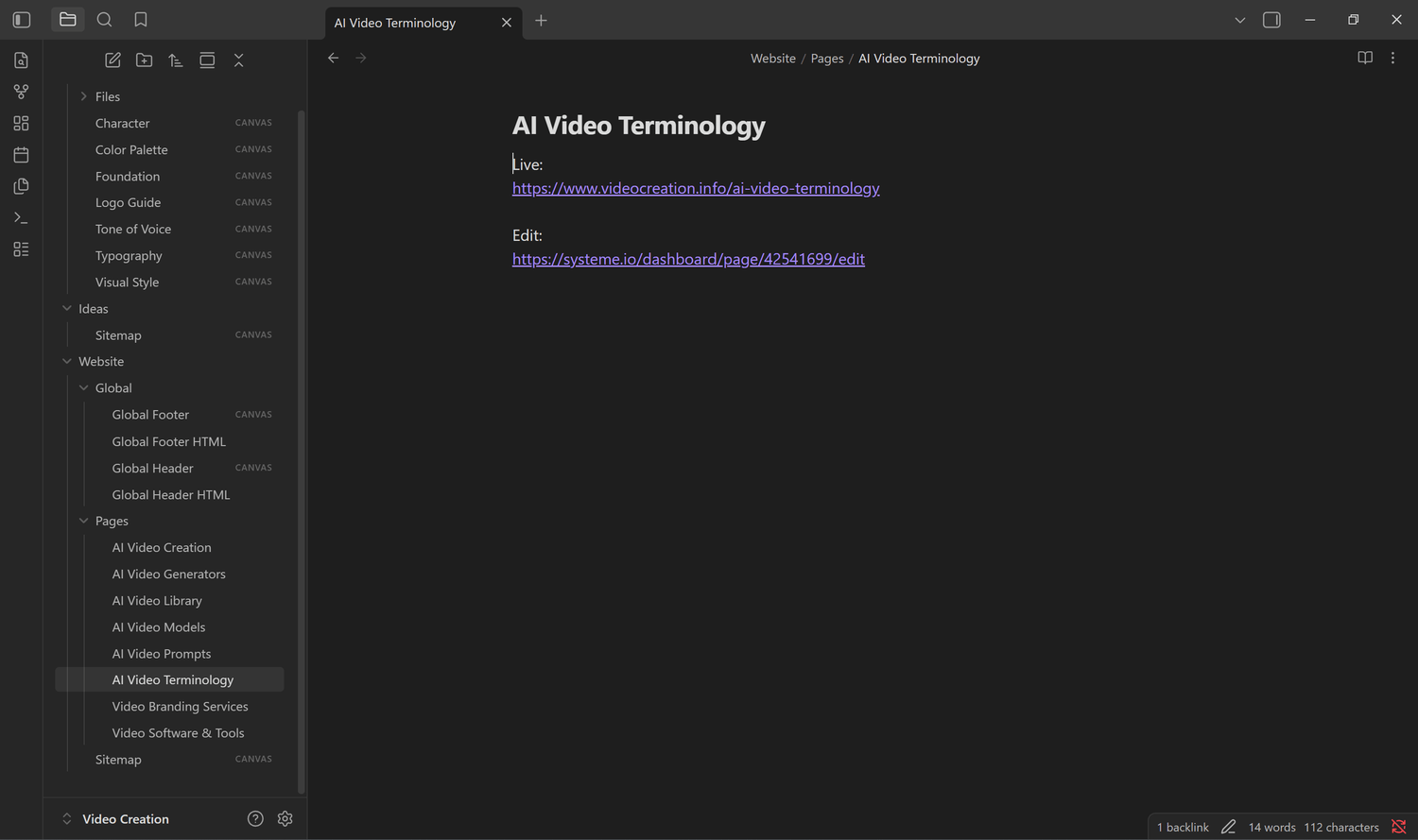
The Sitemap canvas is updated with the pages we created. This gives us a clear overview of:
- Which pages already exist.
- How the pages connect.
- Which links belong in the header and footer.
- Which pages still need to be designed.
The sitemap is not only for planning. It becomes a visual control center for the complete website.
Global Header
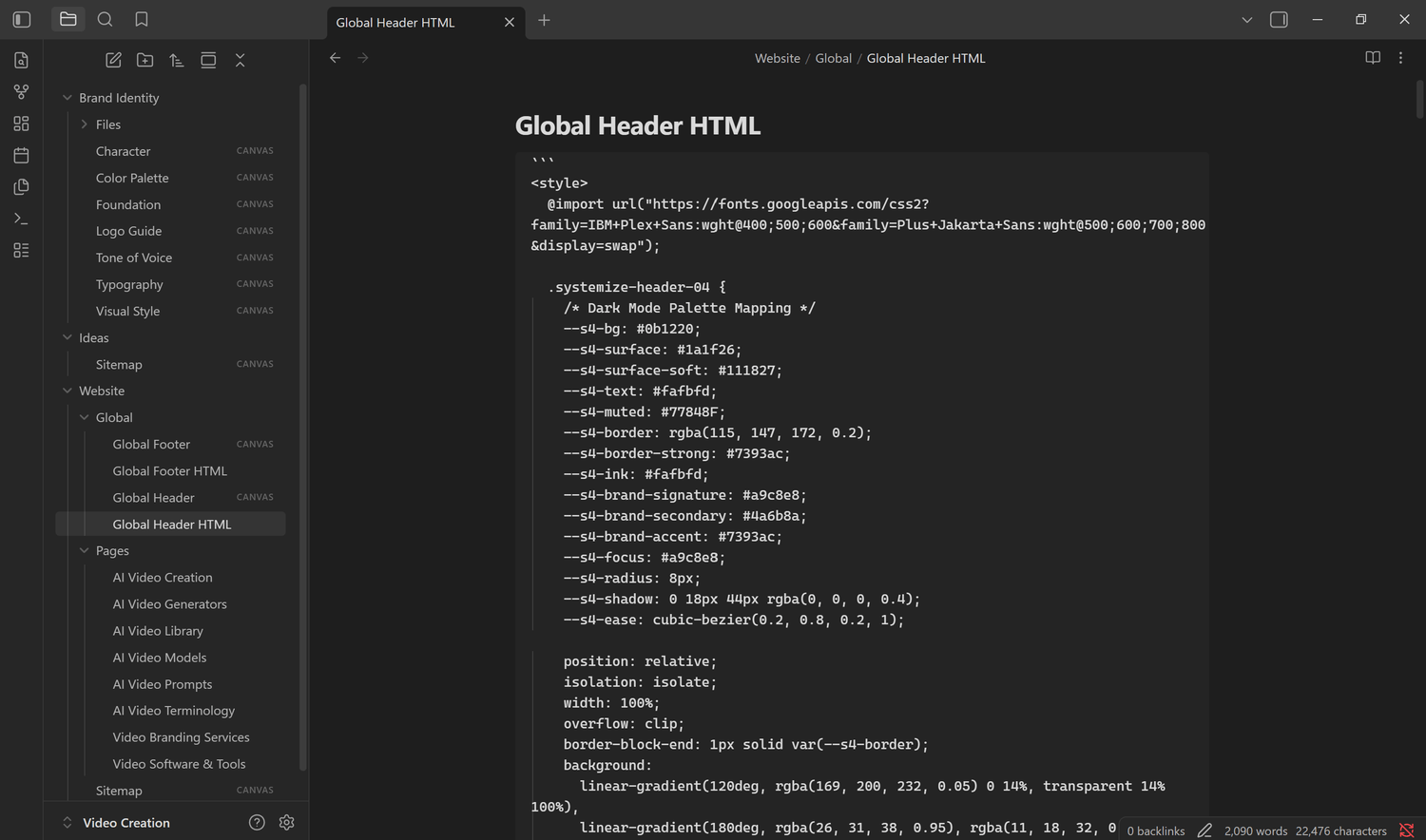
The Global Header section contains everything related to the website header: menu links, logo information, branding instructions, the direct Blog Layout editing link, and the final header code.
Global Footer
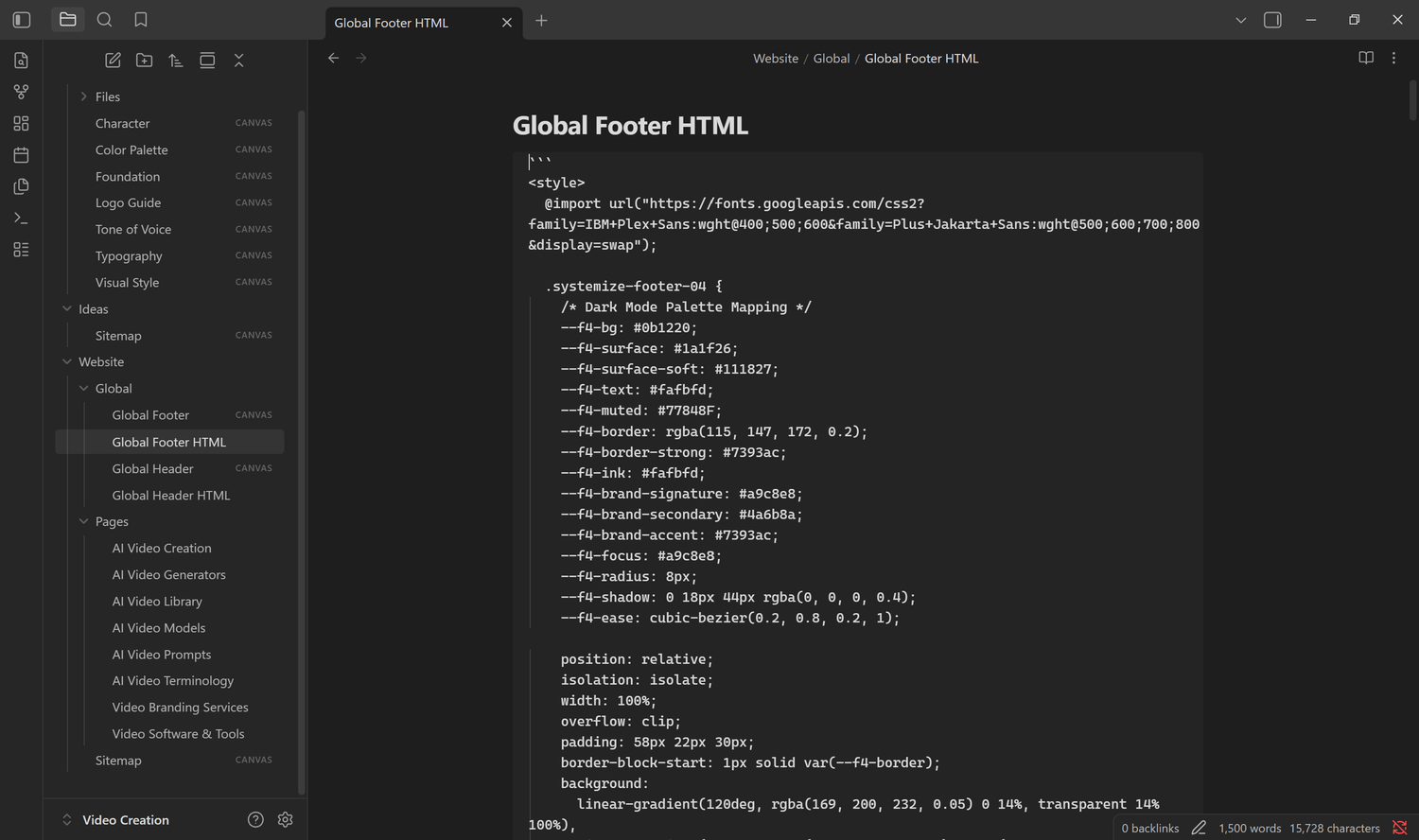
The Global Footer section follows the same structure: footer navigation, legal links, branding details, the direct editing link, and the final footer code. This keeps both global sections organized and separate from individual page designs.
The First Live Result
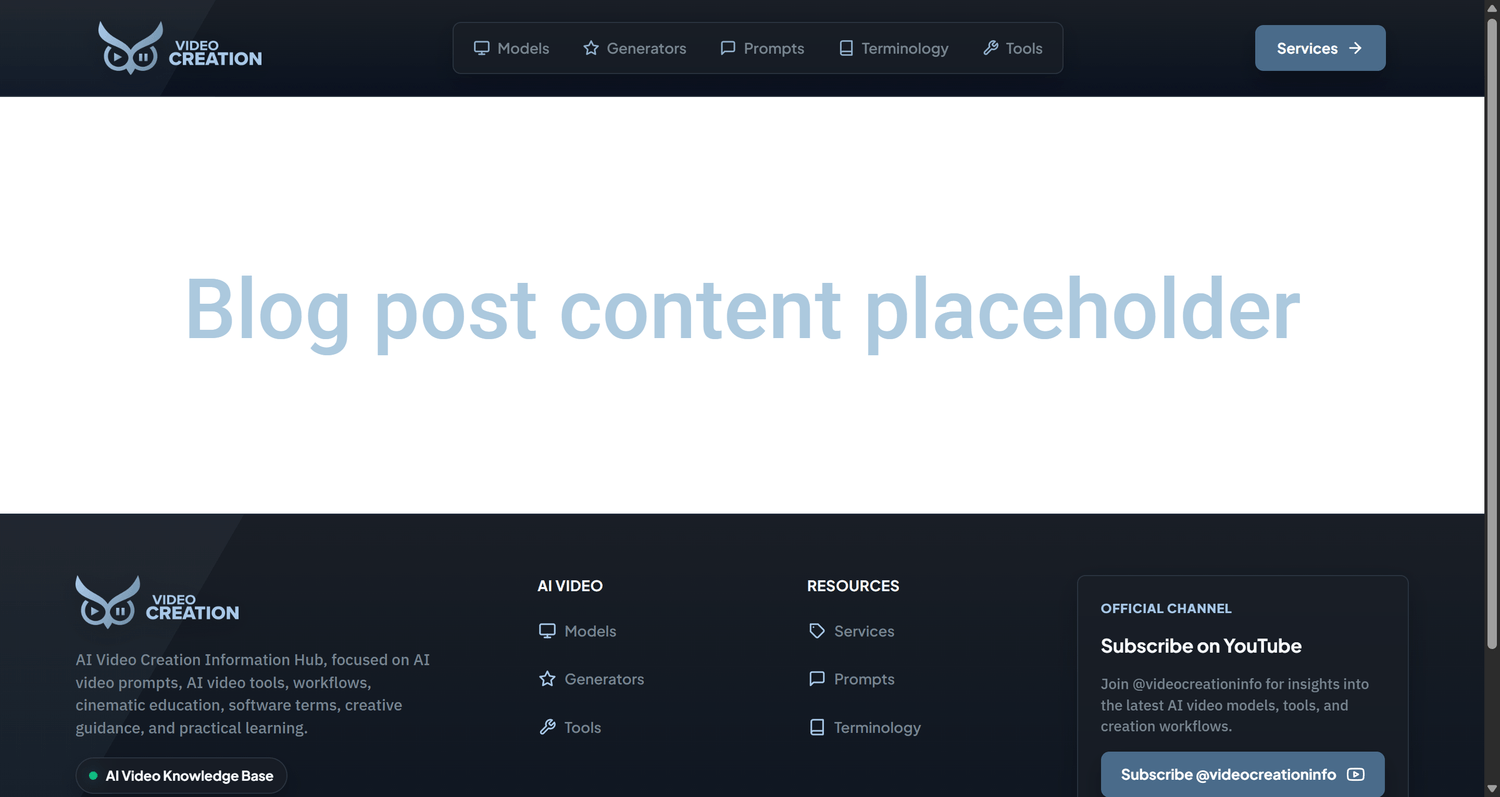
By applying the header and footer directly into the Systeme.io Blog Layout, the live site is instantly framed with consistent navigation, typography, branding, and responsive behavior across every page.
Why this setup matters
The goal is not only to create a header and footer. The goal is to build a system around the website.
Once the pages, links, branding, prompts, and starting code are prepared, you are no longer asking AI to guess what you want. You are giving it a clear structure and a strong starting point. That is when building with AI becomes faster, more consistent, and much easier to control.
Building the Pages & AI Workflow
The private Vault is organized, the Brand DNA is defined, and our global header and footer are live. Now comes the exciting part: building the actual website pages and interactive sections for videocreation.info.
In this step, I wanted to test something super exciting: Can you build a high-end, pro website with smooth motion and cool 3D cards using 100% free AI tools like Gemini and Notebook? The answer is a big YES.
Instead of guessing what to ask or writing code from scratch, we give the AI our project rules, brand style, and clear instructions so it builds exactly what we want every time. Here is how I set it up.
What you will learn in this step:
- 1Prepare a project Knowledge Feeder.Collect your brand colors, fonts, and page goals from Obsidian into an easy document for the AI.
- 2Set up Google Notebook (NotebookLM).Create a dedicated project notebook so Gemini always remembers your brand rules and never wanders off.
- 3Build your custom Gemini Gem.Give your AI helper clear instructions on your project style, role, and clean raw HTML rules.
- 4Have fun with vibe coding.Talk to the AI like a friend in plain, everyday words instead of trying to write fancy prompts.
- 5Play with 3D cards & motion.Ask for smooth hover effects, 3D tilt cards, and soft glows to make your pages feel alive.
- 6Test live in the HTML editor.Check how your desktop and mobile pages look in real time before touching your live site.
- 7Add the code to Systeme.io.Paste the clean raw HTML straight into your page builder and check it out live on VideoCreation.info.
- 8Save your wins back to the Vault.Save your favorite prompts and code snippets back into Obsidian so you never lose them.
1. Knowledge Feeder & Gemini Notebook (NotebookLM)
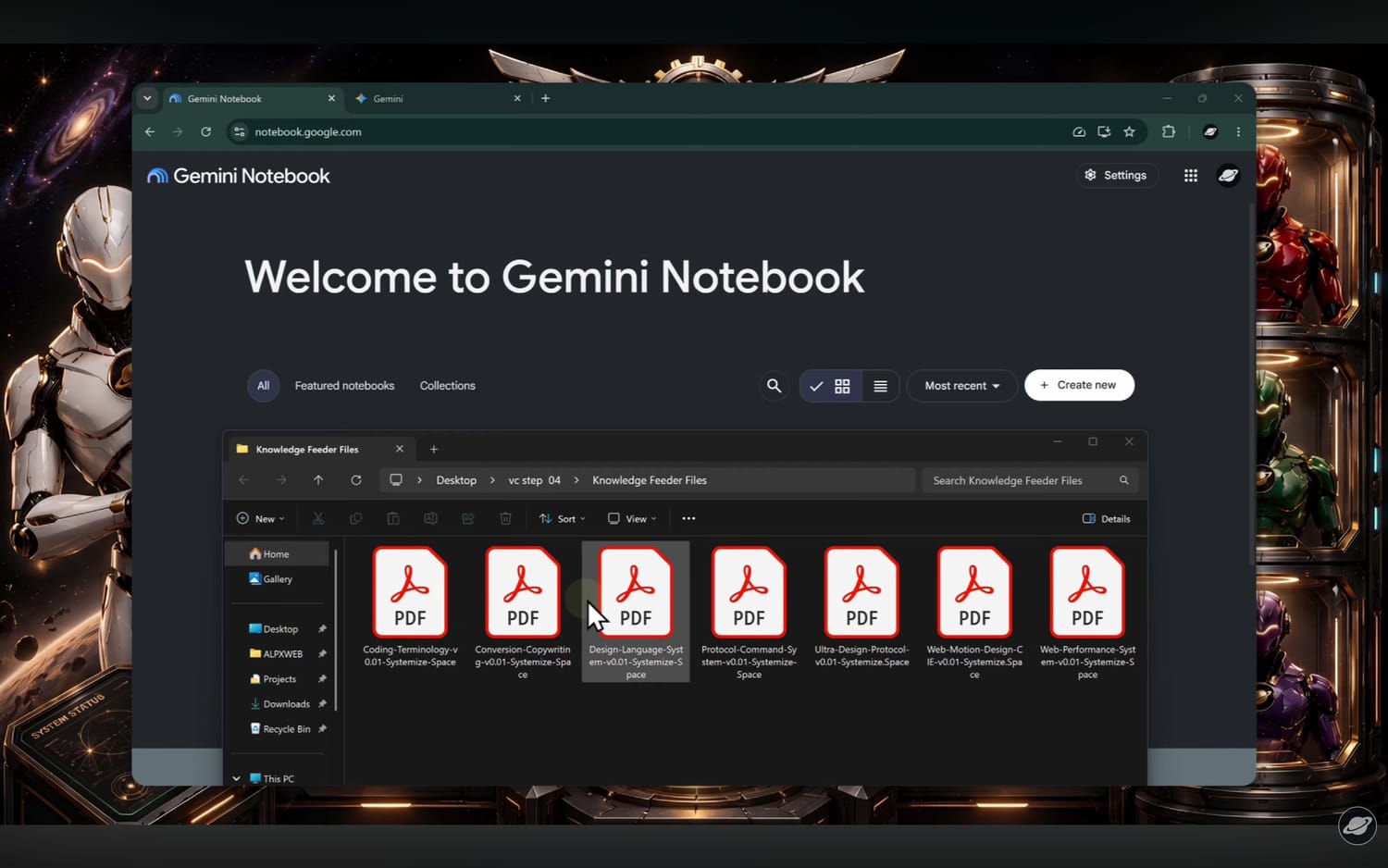
Standard prompting often fails because AI forgets earlier instructions as the conversation grows. To solve this, I take all the notes we prepared in the private Vault (our Brand DNA, color palette, typography, sitemap, and project mission) and put them into a dedicated Knowledge Feeder note.
By uploading this document directly into Google Notebook (NotebookLM), the AI gains instant, persistent memory of the entire project. It understands the context of VideoCreation.info before we ask it to generate a single component.
2. Creating a Custom Gemini Gem
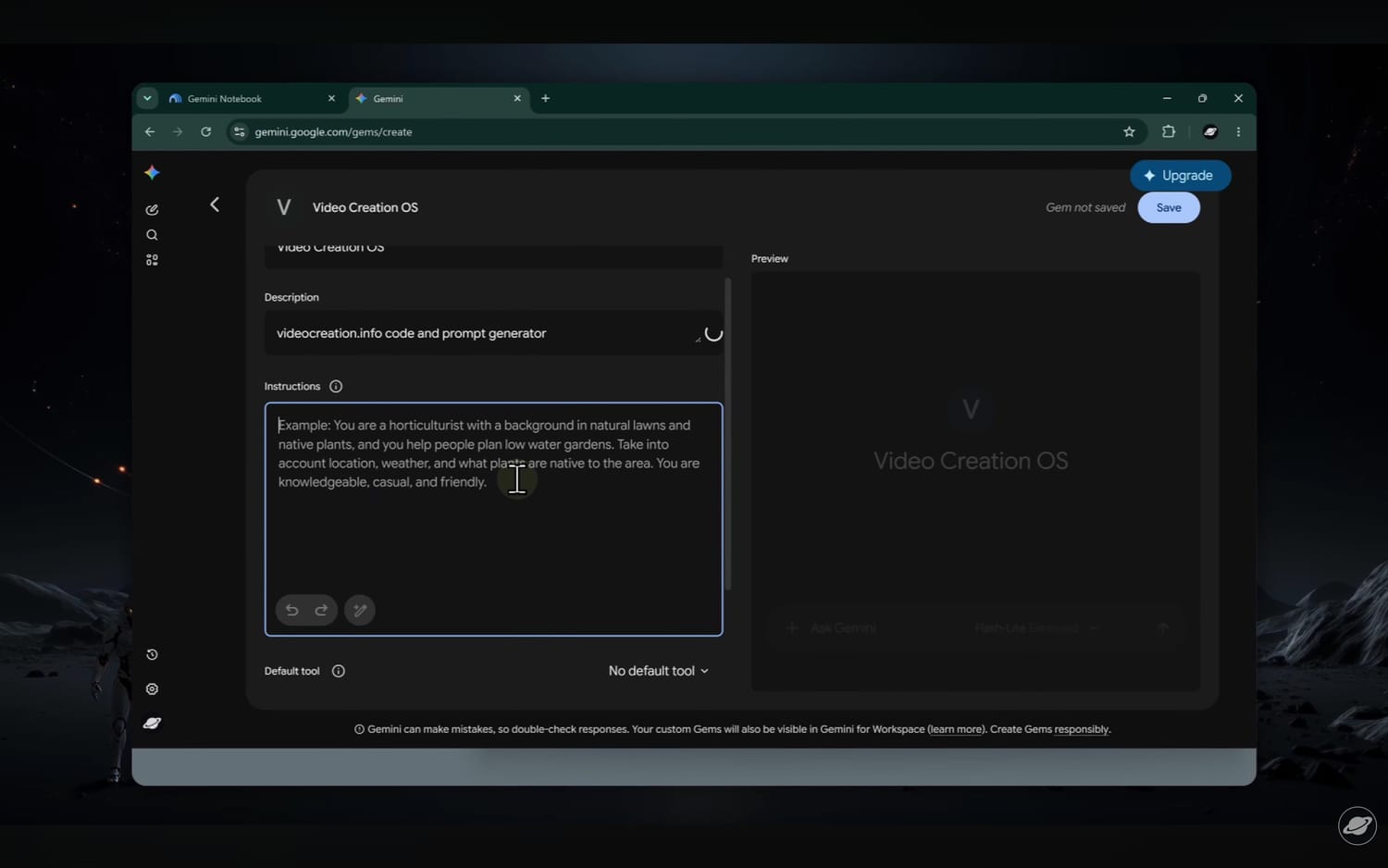
Instead of re-explaining the brand rules, code guidelines, and builder requirements in every single chat, I create a dedicated Gemini Gem for VideoCreation.info.
In the Gem settings, I give it a super clear job: act as my personal website designer and front-end developer. I also set a few simple rules:
- Always stick to our project colors, fonts, and styling rules.
- Output clean raw HTML blocks ready to paste directly into Systeme.io.
- Never include wrapper tags like <!DOCTYPE>, <html>, <head>, or <body>.
- Wrap all styles inside a unique ID so your CSS never messes up the rest of your page.
- Make sure everything looks great and feels easy to tap on phones and tablets.
3. Natural Language Vibe Coding: Chatting with AI
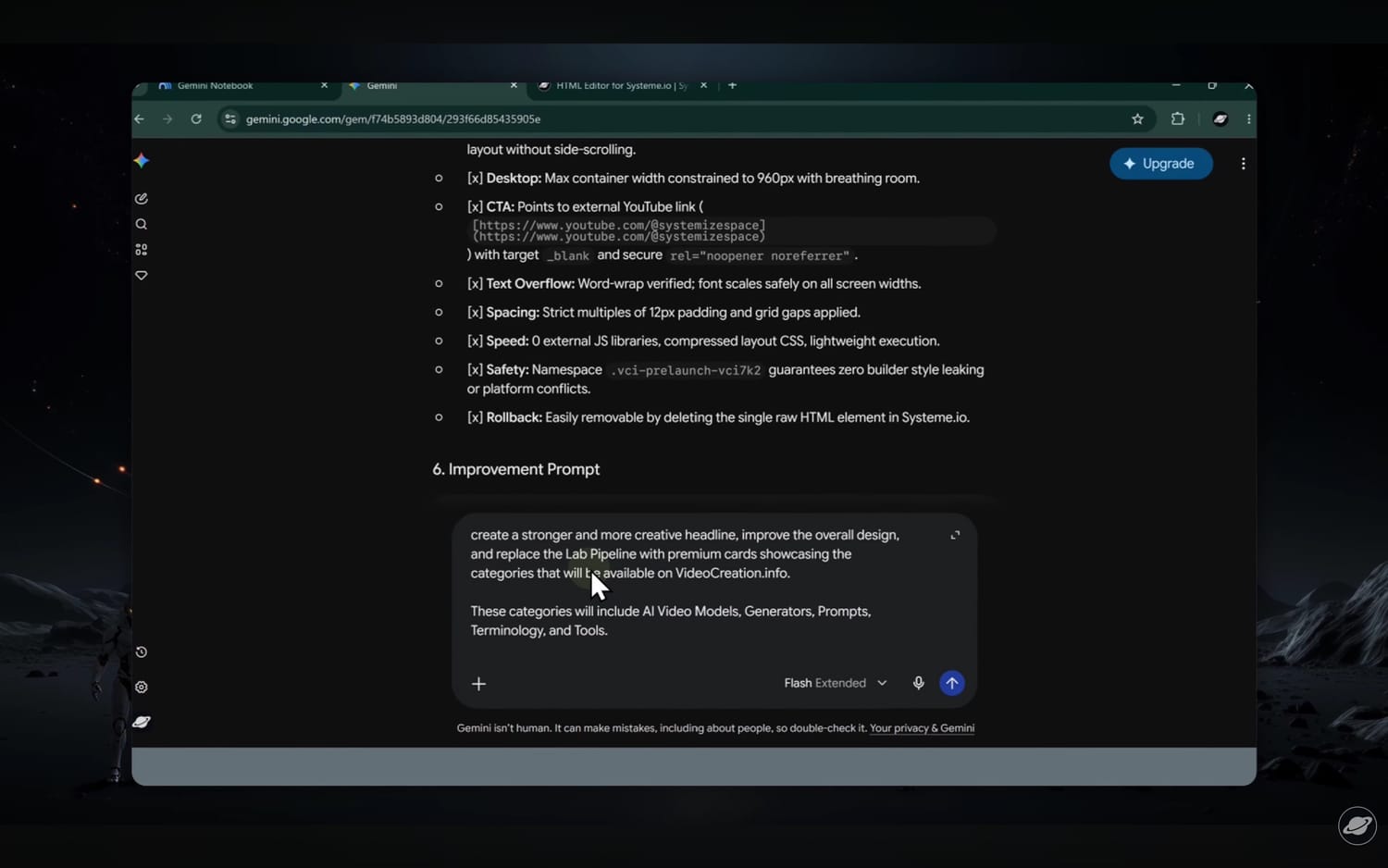
The best part about this whole thing is what I call Vibe Coding: you do not need to memorize complicated prompts or write code by hand. You are the creative director having a casual conversation with your AI design partner, telling it what you want in everyday plain English.
During this session, I experiment with generating the hero section, testing card grids, refining padding, adding 3D tilt effects on hover, and illuminating active cards with subtle radial glows.
4. Live Code Testing & Responsive Checks
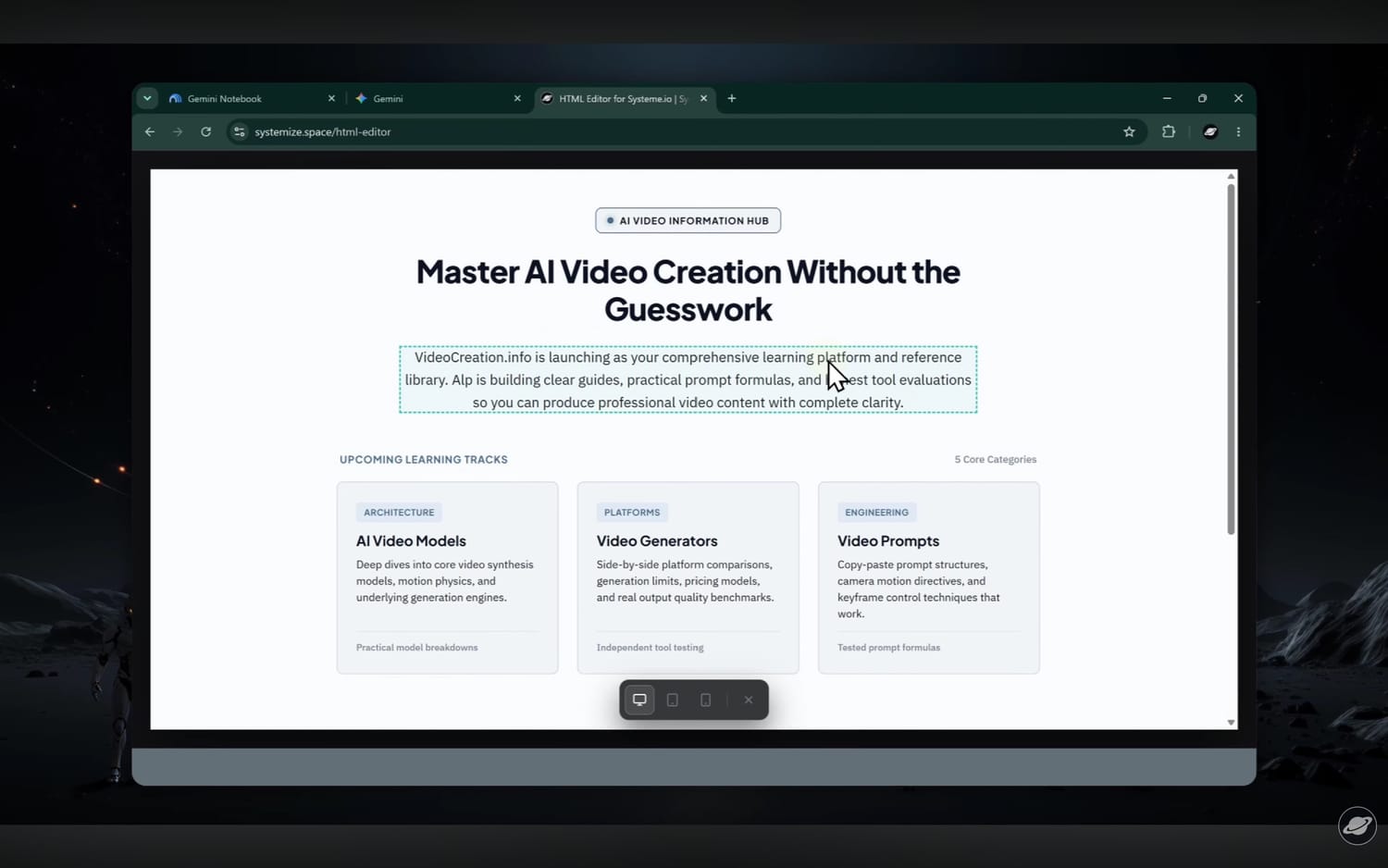
Before adding anything to the live site, I test the generated HTML, CSS, and JavaScript inside an online HTML editor (htmleditor.live). This provides instant feedback with zero delay.
Here, I test:
- How the cards react to mouse movement and hover states.
- Whether the CSS animations run smoothly at 60fps without lag.
- How the layout breaks and restacks when switching to mobile viewports.
- Whether touch targets and buttons have comfortable breathing room.
5. Publishing into Systeme.io & The Live Result
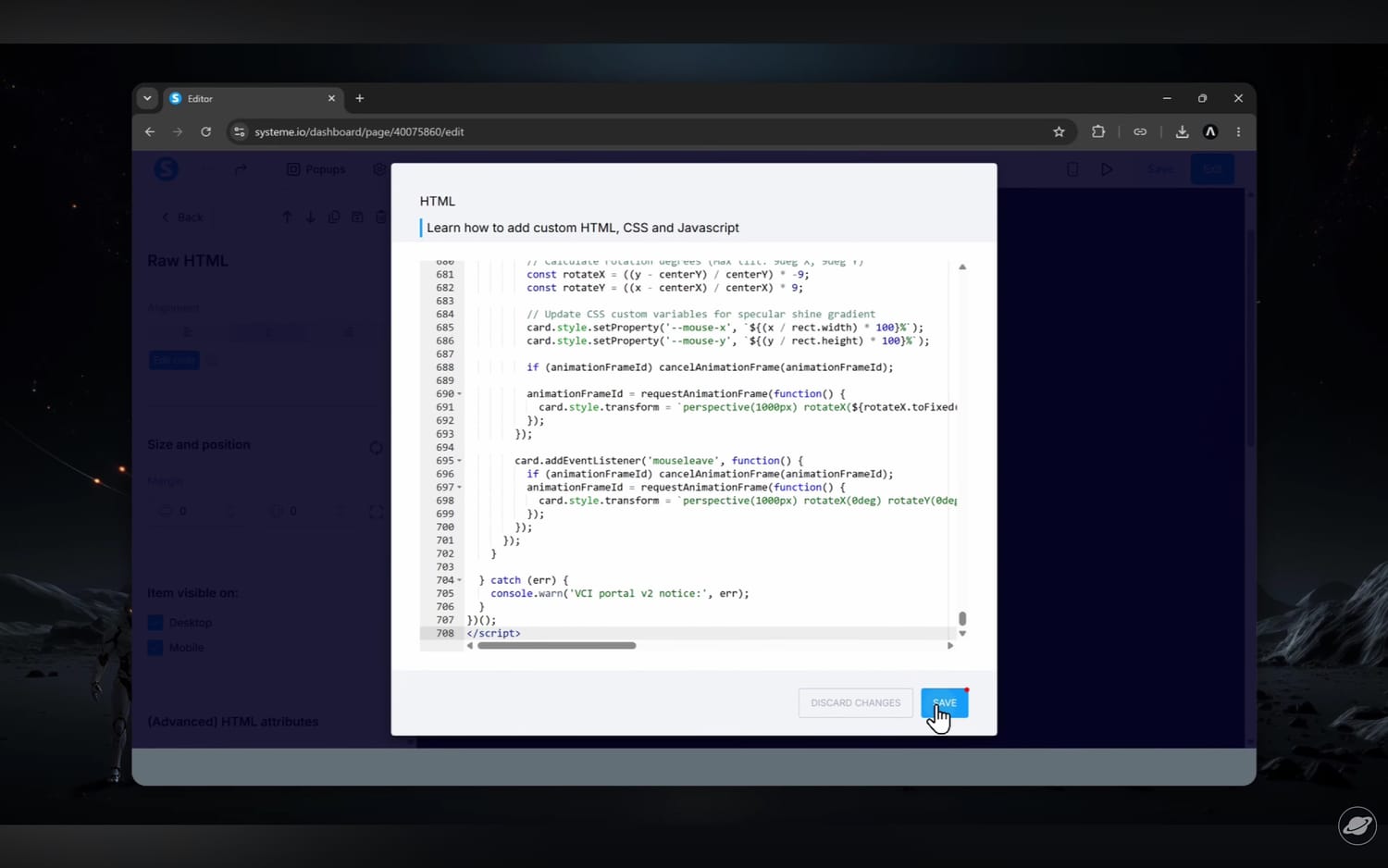
Once the code is verified in the editor, I copy the entire self-contained code block, jump directly into the Systeme.io page editor, and paste it into a Raw HTML element.
Because the Global Header and Footer are already handled by the Blog Layout (from Step 03), the new section snaps directly between them, creating a completely branded, interactive landing page on videocreation.info.
Why this AI workflow matters
What we built in this episode is not just a single web page. It is a complete website-building system.
By using Obsidian as your home base, Notebook so your AI never forgets your brand, a custom Gemini Gem as your personal builder, and an HTML editor for quick testing, you have total creative freedom. No expensive page builders, no complicated setups.
And the best part? It was all achieved using the 100% free versions of Google Gemini and Notebook.
Frequently Asked Questions
Clear, direct answers about building websites with AI on Systeme.io:
How do you build a website with AI on Systeme.io from scratch?
Building a website with AI on Systeme.io follows a four-step framework: first, create a private Obsidian vault as your central command center and knowledge base; second, establish your Brand DNA (colors, typography, and logo rules); third, design and test a responsive global header and footer in a live HTML editor; and fourth, configure a custom Gemini Gem with your brand knowledge to generate clean raw HTML and CSS that you paste directly into Systeme.io custom HTML blocks.
Why use an Obsidian vault when building websites with AI?
An Obsidian vault serves as your offline single source of truth. Rather than leaving prompt fragments and ideas scattered across browser tabs, you keep your sitemaps, brand foundations, design tokens, and proven code snippets organized in one place. You can then feed these clean Markdown notes directly into AI models like Google Notebook and Gemini so they code with full project context.
What is Brand DNA and why does it come before AI coding?
Brand DNA is the visual and structural blueprint of your brand: exact hex color codes, typography hierarchy, button styling rules, spacing systems, and logo usage guidelines. Defining Brand DNA before prompting an AI ensures that every generated section, hero banner, and card stays cohesive and on-brand without requiring endless manual rewrites.
How do Gemini Gems and Google Notebook work together for web development?
Google Notebook acts as the project knowledge base where your vault files, sitemaps, and brand rules are uploaded as trusted sources. A custom Gemini Gem is then given clear system instructions on how to structure code, apply mobile-first CSS, and format HTML for Systeme.io. The Gem references the Notebook knowledge base to write reliable, production-ready code aligned with your brand.
How do you add custom AI-generated code into a live Systeme.io page?
In the Systeme.io page builder, drag a Raw HTML element into your section. Copy the tested code from your preview editor, paste it into the Systeme.io code editor, and save your changes. Because Systeme.io executes raw HTML blocks directly, all responsive styles, interactive features, and Schema markup render natively on the live page.
All Resources & Vault References
Here is the complete reference list organized by step so you have everything in one convenient place: