
HTML Editor for Systeme.io
Alright, let me tell you about something I have been working on. If you have ever used AI to generate custom code for your Systeme.io pages and then could not save it in the raw HTML block, I built this tool for you. It is a completely free HTML editor that shows you exactly what is wrong with your code before you ever try to paste it.
You get a live preview on one side and your code on the other. Paste in whatever your AI gave you, see it rendered instantly, and if there are any forbidden tags hiding in there, the editor flags them immediately. No more guessing. No more paste and pray. You see the problem, you fix it, and you paste clean code that actually saves.
Paste your code, check the live preview, catch forbidden tags before they block your save, or simply make a quick text change without going back to AI. That is the whole idea.
What It Does
Think about how most people use AI for their Systeme.io pages. You ask ChatGPT or Claude to write some custom HTML, it gives you the code, you paste it into a raw HTML block, and then you cannot save. The block just refuses. You have no idea why because Systeme.io does not tell you which tag caused the problem. So you go back to the AI, ask it to fix the code, paste again, same result. That loop is incredibly frustrating and it is the exact reason I built this editor.
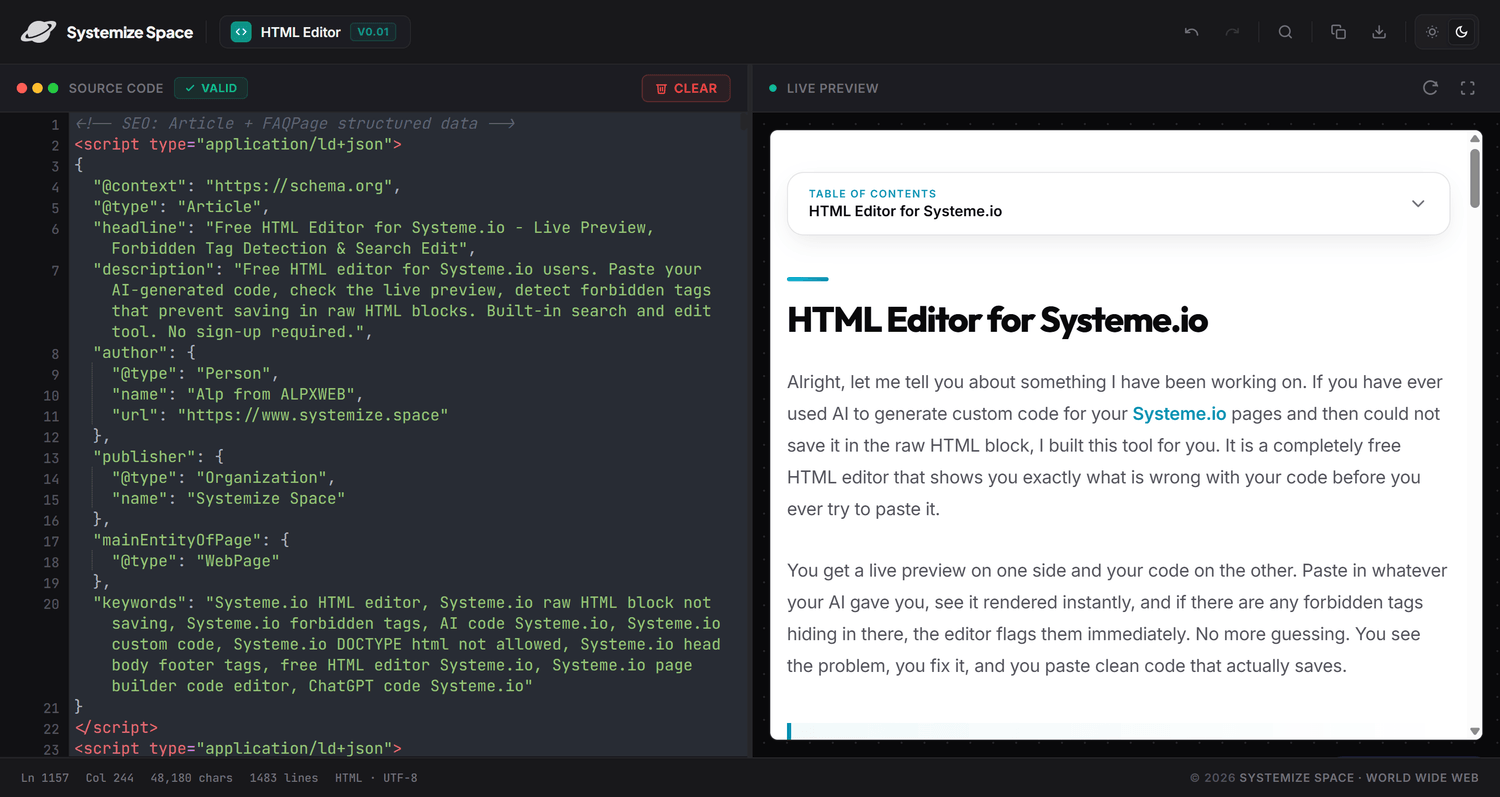
The HTML Editor. Paste your AI code, see the live preview, catch forbidden tags instantly.
Launch the free editorHere is what Systeme.io actually does. It has a set of forbidden tags that are not allowed inside raw HTML blocks. Tags like <!DOCTYPE html>, <html>, <head>, <body>, and <footer>. Systeme.io already provides the page structure, so it does not let you duplicate those foundational tags inside a raw HTML block. If your code contains even one of them, the block will not save. The platform does not tell you which one is the problem. It just refuses to save.
This editor scans your code the moment you paste it and flags every forbidden tag it finds. You see exactly which tags are causing the issue. Then you have two options for fixing them, which I will walk you through in the next section.
More Than Just Detection
The forbidden tag detection is the headline feature, but there are two more things this editor does that I think are just as valuable.
- Live preview of your AI code Paste your code from ChatGPT, Claude, Gemini, whatever you use, and see it rendered live on the right side. You know exactly how it looks before you paste it into Systeme.io. No surprises after saving.
- Built-in search and edit Need to change a text, a color, a link? Use the search tool to find it instantly, edit it right there in the code, and watch the live preview update. No need to go back to your AI chat, explain what you want changed, wait for the response, and paste again. Especially for simple text edits, using AI is just burning tokens for something you can do yourself in seconds.
How to Fix Flagged Tags
So the editor flagged some forbidden tags in your code. Now what? This is where it gets good because you have two paths forward, and both of them work.
Option 1: Fix It Yourself
If you know your way around HTML, this is the fastest route. The editor shows you exactly which tags are flagged and where they are in your code. You remove the ones that should not be there, the live preview updates instantly, and you move on. You stay in control the whole time. The editor does not touch your code. It just shows you the problems.
Option 2: Let Your AI Fix It
If you are not comfortable editing code yourself, no problem at all. The editor gives you the flagged errors right there on screen. You copy those errors, go back to your AI chat, and paste them in with a prompt like this.
Act as a senior frontend developer and Systeme.io raw HTML specialist.

I pasted custom code into Systeme.io and the raw HTML block will not save because it contains forbidden structural tags.

Please clean the code for Systeme.io:
1. Remove forbidden tags such as DOCTYPE, html, head, body, footer, and any duplicated page-level structure.
2. Keep the visual design, CSS, JavaScript, links, images, and functionality intact.
3. Scope the CSS and JavaScript so it does not affect the rest of my Systeme.io page.
4. Return only the clean code that can be pasted into one Systeme.io raw HTML block.

Here are the errors from the editor:
[PASTE THE FLAGGED ERRORS HERE]

Here is my code:
[PASTE YOUR CODE HERE]
Your AI will return safe, clean custom code that works perfectly in Systeme.io. You paste that clean code into the editor, the live preview confirms it looks right, and you are good to go.
That workflow is honestly the one I recommend most people start with. It combines the best of both worlds. Your AI writes the code, the editor catches what the AI got wrong, and then the AI fixes its own mistakes. Clean code, zero guesswork, and you never have to touch a single line of HTML yourself.
The editor shows you the errors. What you do with them is up to you. Fix them yourself if you can, or hand them back to your AI and let it give you clean Systeme.io-ready code. Either way, you win.
How It Works
Simple. Open, paste, check, copy.
-
Open the editor
Go to systemize.space/html-editor. No account, no sign-up, no download. Opens right in your browser.
-
Paste your code
Paste your AI-generated code into the editor. The live preview renders instantly so you can see exactly how it looks. If there are forbidden tags, they get flagged right away.
-
Fix the flagged tags
Remove them yourself if you know what you are doing, or copy the errors and paste them into your AI chat with a prompt to fix them. Either way, paste the clean code back into the editor and confirm the live preview looks right.
-
Copy into Systeme.io
Copy your clean code, go to your Systeme.io page builder, drag a raw HTML block where you want it, and paste. Hit save. Done.
Frequently Asked Questions
-
What is the HTML Editor for Systeme.io?
A free tool I built on Systemize Space for anyone who uses custom code in Systeme.io. It gives you a live preview of your code and detects forbidden tags that prevent saving in raw HTML blocks. No account needed, no download, no sign-up.
-
What are forbidden tags in Systeme.io?
Systeme.io does not allow tags like
<!DOCTYPE html>,<html>,<head>,<body>, and<footer>inside raw HTML blocks. These are the foundational tags that Systeme.io already handles as part of the page structure. If your code contains any of them, the raw HTML block will not save. -
How do I fix forbidden tags?
Two ways. If you know HTML, you can remove the flagged tags yourself directly in the editor. If not, copy the errors the editor shows you, paste them into your AI chat model, and prompt it to fix the code by telling it those tags are not allowed in Systeme.io. Your AI will return clean code that works perfectly in the page builder.
-
Can I use AI-generated code with this editor?
That is exactly what it is built for. Paste code from ChatGPT, Claude, Gemini, or any AI tool. The live preview shows you how it looks, and the forbidden tag detection flags anything Systeme.io will not accept. You can then fix the errors yourself or hand them back to your AI for a clean version.
-
Why can I not save my custom code in Systeme.io?
If your raw HTML block will not save, your code most likely contains a forbidden tag like DOCTYPE, html, head, body, or footer. Systeme.io does not allow these inside raw HTML blocks. Paste your code into this editor first and it will show you exactly which tag is causing the problem.
-
Is the HTML Editor free?
Yes, completely free. Visit systemize.space/html-editor and it opens right in your browser. No account, no sign-up, no download. Just open and start using it.
-
Can I search and edit text directly in the editor?
Yes. The editor has a built-in search tool. Find any text in your code instantly, edit it right there, and see the changes update in the live preview. For simple edits like changing text, a link, or a color, there is no need to go back to your AI. You save your tokens for the real problems and handle the easy stuff yourself in seconds.