
Video walkthrough
See the Systeme.io AI Vibe Coding workflow in motion.
Watch the full workflow before you build. You will see how the Vault, NotebookLM, the HTML Editor, and Gemini Gems work together so your Systeme.io AI setup feels clear, safe, and repeatable.
Workflow architecture
A simple path from knowledge to safe Systeme.io output.
This Systeme.io AI workflow is not about one magic prompt. It is a layered workflow: feed the knowledge, understand the system, generate a safe starting point, preview the code, save what works, then turn the process into a powerful premium AI code assistant for Systeme.io.
NotebookLM is the Level 1 brain
It studies the Vault, teaches you at your own pace, creates stronger prompts, and can already produce clean starting code from your private sources.
Studio helps you learn
Use NotebookLM Studio to understand the knowledge at your own pace through summaries, study assets, and creative learning formats.
HTML Editor protects you
Preview the code before Systeme.io so you can inspect layout, mobile behavior, CTA flow, and safety.
Gemini Gem is Level 2
Use a Gem as your private Systeme.io AI Code Engine for prompts, code, images, PDFs, HTML files, and transformations.
This is Workflow 01
Systemize Space will publish more workflows for different building situations. This first workflow is the foundation for Systeme.io AI, Systeme.io AI workflow, and Systeme.io AI Vibe Coding.
Vault foundation
Start inside the Systemize Space Vault Knowledge Feeder
The Vault is where the private knowledge comes from. Use the Knowledge Feeder to collect the right files, keep version names clear, and prepare the source kit that makes NotebookLM useful instead of generic.
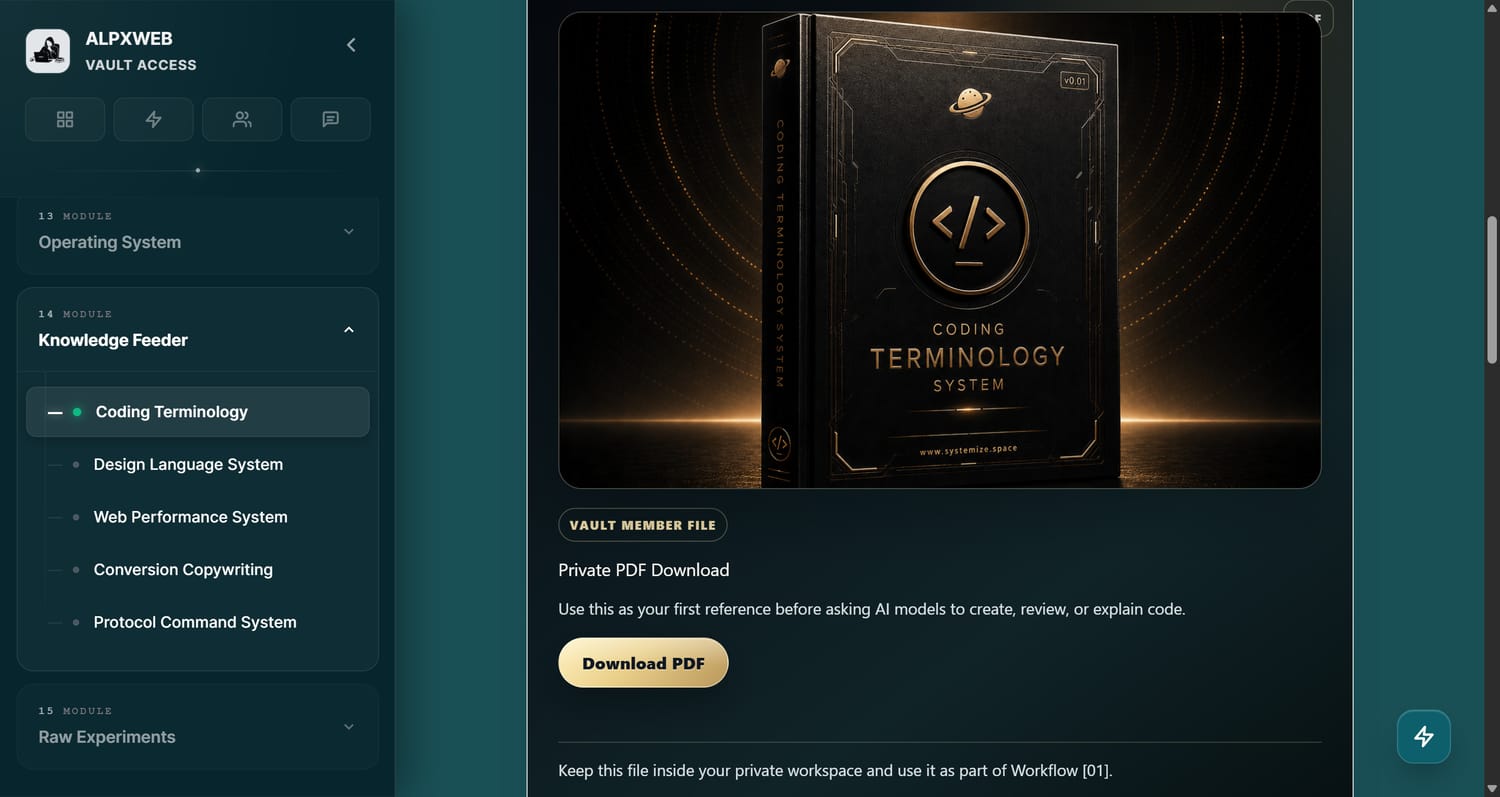
Coding Terminology
Gives the AI shared language for HTML, CSS, JavaScript, components, snippets, and beginner-friendly code explanations.
Conversion Copywriting
Guides headlines, CTAs, objections, offer flow, emotional clarity, and conversion-focused page sections.
Design Language System
Controls spacing, layout, visual rhythm, premium style, readability, and brand polish.
Protocol Command System
Teaches the AI to follow rules, format output, respect constraints, and work step by step.
Web Performance System
Protects your Systeme.io pages from slow, bloated, risky frontend code and weak performance choices.
Personal Brand Guide
Adds your voice, offer positioning, visual identity, tone, audience rules, and brand decisions so the AI creates output that feels like your business.
Private Vault reminder
The Vault files are private member-use assets. Do not publish, resell, forward, expose, attach, upload, or make them available inside public chats, shared notebooks, shared Gems, client accounts, team drives, or any workspace where other people can access the source files. Use them only inside your own private learning and building environment.
Vault files and support area
The Vault is where you get the workflow files, prompt library, tools, updates, and support area for building with this system. Start at www.systemize.space/vault when you are ready to follow the workflow with the correct assets.
Private Vault access
Unlock the private source files and full workflow prompts
This workflow shows the path. The Vault gives you the files, systems, and deeper prompt workflows that make the path actually usable inside your own AI workspace.
Open Systemize Space VaultLevel 1 source brain
NotebookLM first: understand the Vault, ask better questions, test safely
This is the easiest first workflow. NotebookLM becomes the brain of the system: it reads your Vault files, explains the rules in plain language, creates stronger prompts, and helps you produce safer code before anything touches Systeme.io.
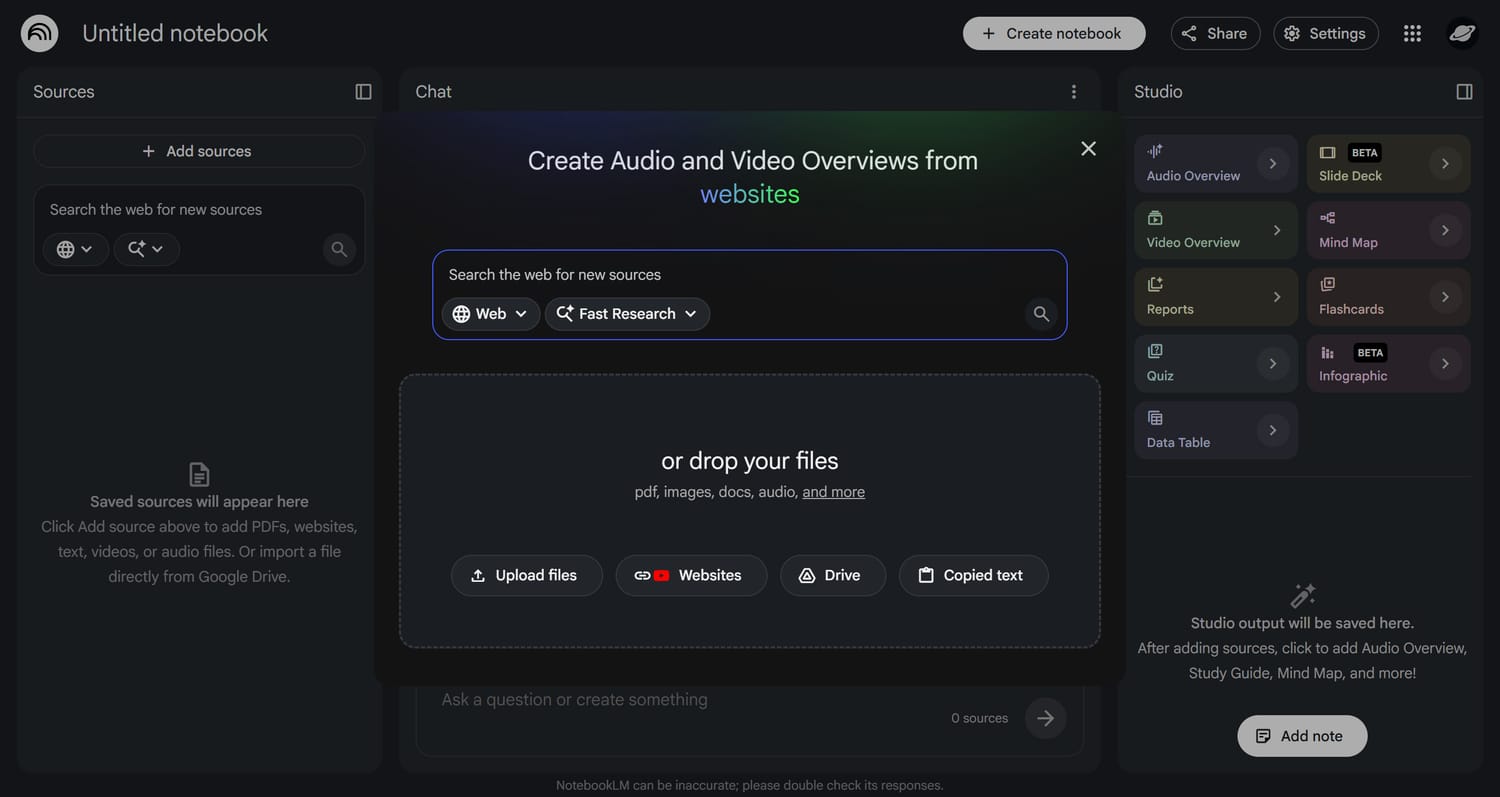
Create a NotebookLM notebook
Open NotebookLM, create a new notebook, and name it something clear like My Systeme.io AI Workspace.
Upload the Vault files
Add the five Vault PDFs from the screenshot. These files become the source knowledge that NotebookLM can use when answering you.
Ask NotebookLM to understand the system
Before asking for code, ask NotebookLM to explain what each file does and how the files work together for Systeme.io-safe output.
Ask for a first safe code test
Start small. Ask for a premium hero section or a simple documentation block. The goal is not to build the whole business yet. The goal is to see whether the AI can follow the Vault rules.
Copy the code output
When NotebookLM gives you code, copy the full code block. If the answer is not in one clean code block, ask it to reformat the output into one complete copy-paste block.
NotebookLM can already produce clean code
Level 1 is powerful by itself. NotebookLM can help you understand the Vault, create prompts, and produce clean starting code when the sources are organized well. Use NotebookLM Studio as another learning layer when available: it can help you understand the knowledge through study-style outputs, summaries, and creative formats before you build with other AI models.
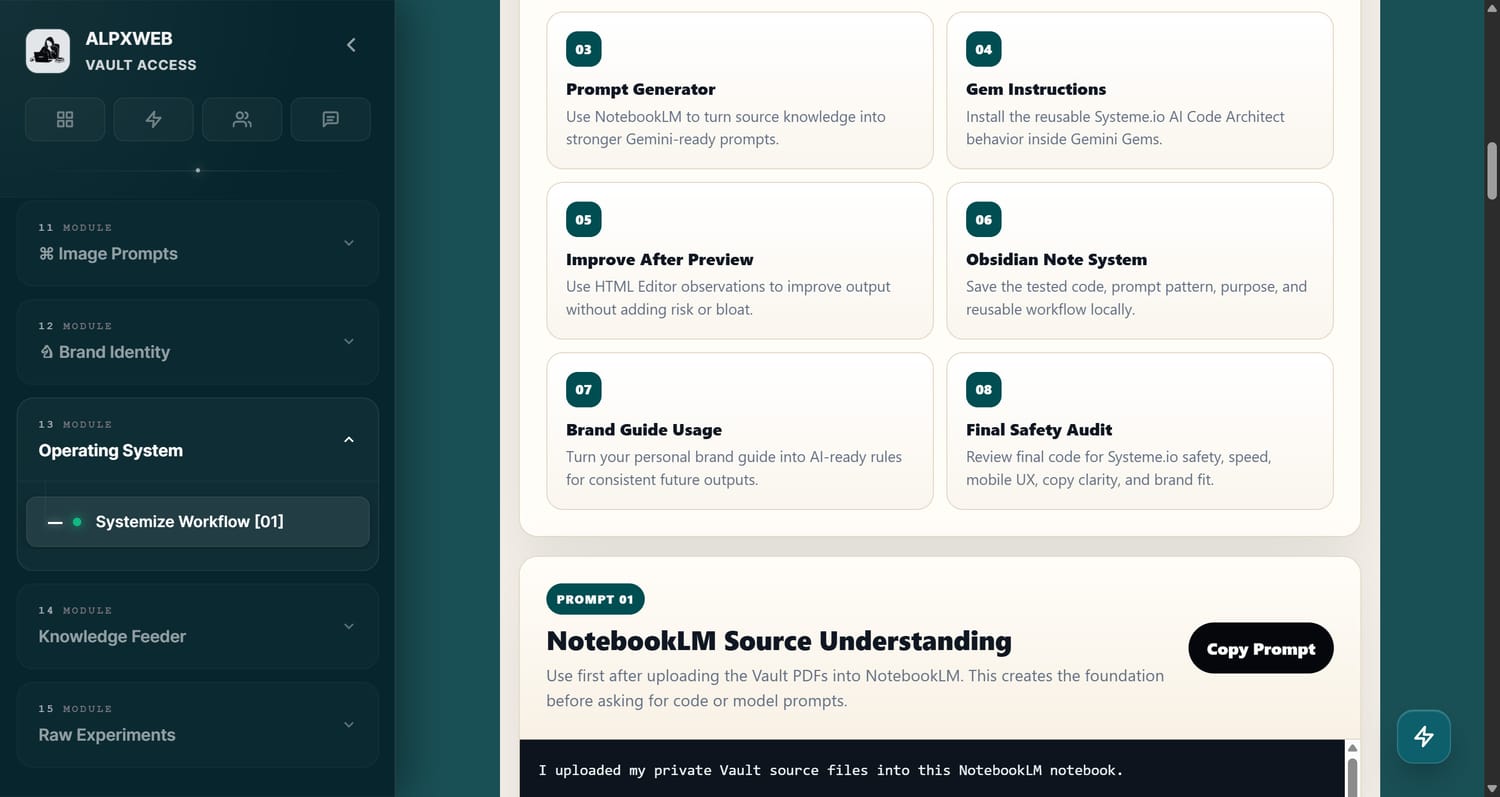
NotebookLM Source Understanding
Purpose: asks NotebookLM to explain what each Vault file controls, how the sources work together, and what rules matter before creating Systeme.io AI output.
Use Vault Prompt 01 in the Vault prompt library.
Premium Wow Hero Code Test
Purpose: proves that NotebookLM can already create a clean, premium, Systeme.io-safe hero section from your uploaded source knowledge.
Use Vault Prompt 02 in the Vault prompt library.
Prompt system
Use the exact copy-paste prompts inside the Vault
This page shows the workflow. The Vault prompt library gives you the exact working prompts with copy boxes, testing steps, and reusable command structure.
Open the Vault Prompt LibraryLive Preview Lab
Preview and refine AI code in the Systemize Space HTML Editor
Do not paste new AI code straight into your live page. First, use the Systemize Space HTML Editor as your safety layer so you can see the result, catch layout issues, improve mobile behavior, and only move polished code into Systeme.io.
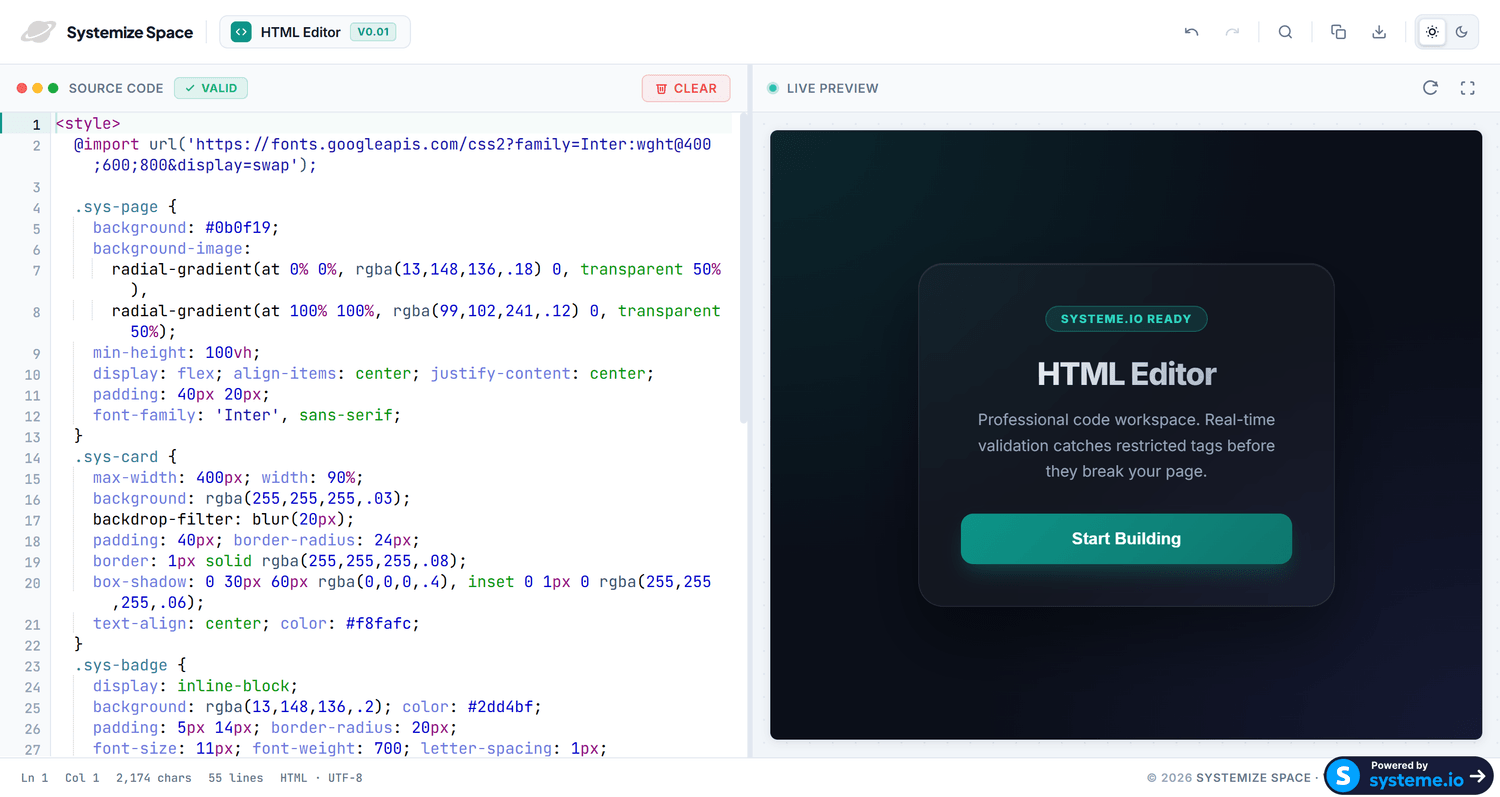
Open the editor
Paste the code
Paste the full HTML/CSS/JS output from NotebookLM into the editor. Use the live preview to check spacing, mobile behavior, typography, buttons, and overall feel.
Improve through conversation
If it is close but not perfect, go back to NotebookLM and ask for improvements: more premium, less spacing, more mobile friendly, better CTA, calmer animation, or cleaner code.
Improve Code After HTML Editor Preview
Purpose: helps you describe what you saw in the live preview and ask the AI to improve the code without adding unsafe dependencies or making it heavier.
Use Vault Prompt 05 in the Vault prompt library.
Paste into Systeme.io only when happy
When the preview looks good, paste the code into a raw HTML block on your Systeme.io page. Save, preview the page, and test again on mobile.
- OKThe code preview looks good on desktop and mobile.
- OKThe code uses scoped classes and does not break the page.
- OKThere are no external scripts or heavy dependencies unless you approved them.
- OKThe CTA, text, spacing, and visual flow feel premium enough for your brand.
- OKYou know how to remove the block if something does not work.
Local knowledge vault
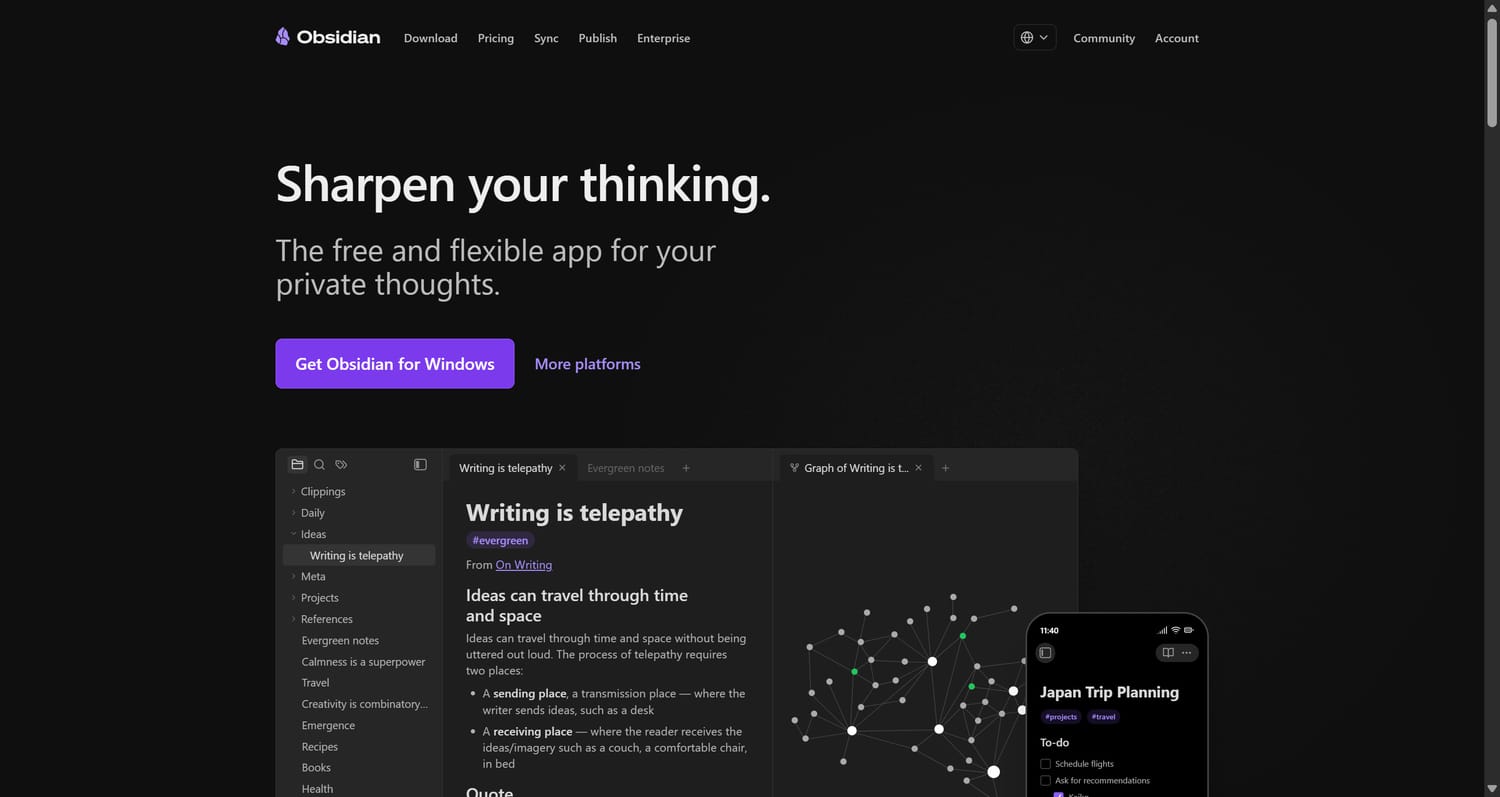
Build a private prompt and code library in Obsidian
Obsidian becomes your local command library. Every tested prompt, final code block, brand note, and improvement idea becomes a reusable asset for the next Systeme.io page, funnel, section, offer, or client project.
Prompt library
Save the exact prompt that created a good output. Add a short note about why it worked and what you would improve next time.
Code library
Store only the final tested code, where you used it, and what it is meant to do. This keeps your library clean and usable.
Brand memory
Over time, your local vault becomes your own branded operating system: your style, your page patterns, your prompt language, and your best code.
Obsidian note
Obsidian is a local notes and knowledge-base tool. Treat it like your personal library vault, not a messy notes folder. You can open the official Obsidian website to learn more. More about Obsidian and safe local workspaces can be found in the Safe Workspace category inside the Systemize Space Vault.
Obsidian Prompt and Code Note
Purpose: gives you a clean local note structure for saving final tested code, the prompt that created it, where it was used, and how to improve the next version.
Use Vault Prompt 06 in the Vault prompt library.
Brand intelligence layer
Train NotebookLM with your brand guide before scaling output
The Vault gives the AI the building system. Your brand guide gives the AI your identity. When both are inside NotebookLM, your code, pages, funnels, and prompts start to feel like your business instead of generic AI output.
Brand strategy
Add your mission, audience, offer, tone, values, positioning, visual direction, and what your brand should never feel like.
Visual identity
Add colors, typography, spacing preferences, logo rules, example images, moodboards, and design references you are allowed to use.
Reusable prompts
Once NotebookLM understands your brand, ask it to create prompts that tell Gemini, Claude, ChatGPT, Qwen, Manus, or another model how to stay on-brand.
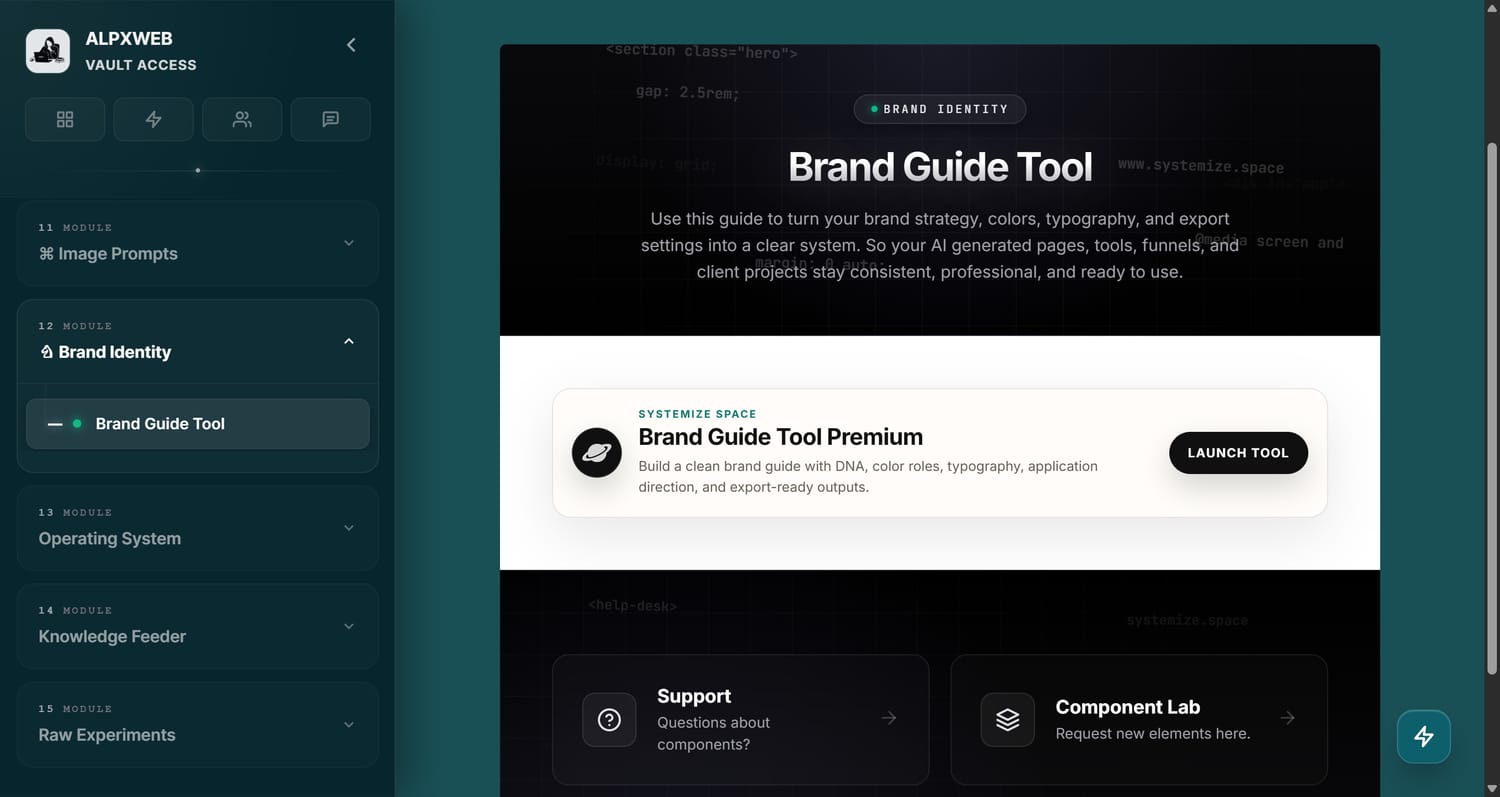
Brand Guide Tool inside the Vault
The Vault includes a Brand Guide Tool that helps turn your brand strategy, colors, typography, and export settings into a clear system. Use it to make AI-generated pages, tools, funnels, and client projects stay consistent, professional, and ready to use.
Brand Guide Upload and Usage Prompt
Purpose: helps NotebookLM understand your personal brand guide and turn it into rules that other AI models can follow when creating Systeme.io pages and sections.
Use Vault Prompt 07 in the Vault prompt library.
Brand control layer
Build your personal brand guide before scaling AI output
The stronger your brand guide, the less generic your AI output becomes. Use the Vault tools to create the brand source file, then upload it into NotebookLM beside your workflow PDFs.
Access the Brand Guide ToolUniversal prompt bridge
Ask NotebookLM for a prompt you can use in any AI chat model
Now we move from direct NotebookLM code output to a universal AI workflow. Ask NotebookLM to create a prompt you can paste into Gemini, Claude, ChatGPT, Qwen, Manus, or another LLM. In this lesson, Gemini is the example, but the method works far beyond one model.
Universal AI Model Prompt Generator
Purpose: asks NotebookLM to create a prompt you can paste into Gemini, Claude, ChatGPT, Qwen, Manus, or another LLM so that model can create the next Systeme.io-safe code output.
Use Vault Prompt 03 in the Vault prompt library.
Vault prompt library
The Vault includes the deeper prompt workflows with full copy boxes, testing steps, and reusable templates for advanced code generation.
Copy the prompt from NotebookLM
NotebookLM should now give you a better prompt than a normal beginner prompt because it understands the Vault files.
Paste that prompt into your AI model
Open Gemini, Claude, ChatGPT, Qwen, Manus, or another model. Paste the prompt and ask for the full code in one clean copy box. In this lesson, we use Gemini as the example.
Test the AI output
Copy the code output into the Systemize Space HTML Editor, preview it, tweak it, improve it, and only paste it into Systeme.io when you are satisfied.
What you just learned
This is Level 1. You learned that NotebookLM can understand the Vault, create better prompts, and help you get clean, safe, minimal but premium code from other AI chat models. This is already powerful, and it is only the beginning.
Level 2 private code engine
Create a premium Gemini Gem connected to Vault knowledge
Now we build the next layer: your own private Systeme.io AI Code Engine. This Gem uses the Vault knowledge, your brand rules, and your instructions to create Systeme.io-safe code, prompts, and documentation again and again.
Open Gemini Gems
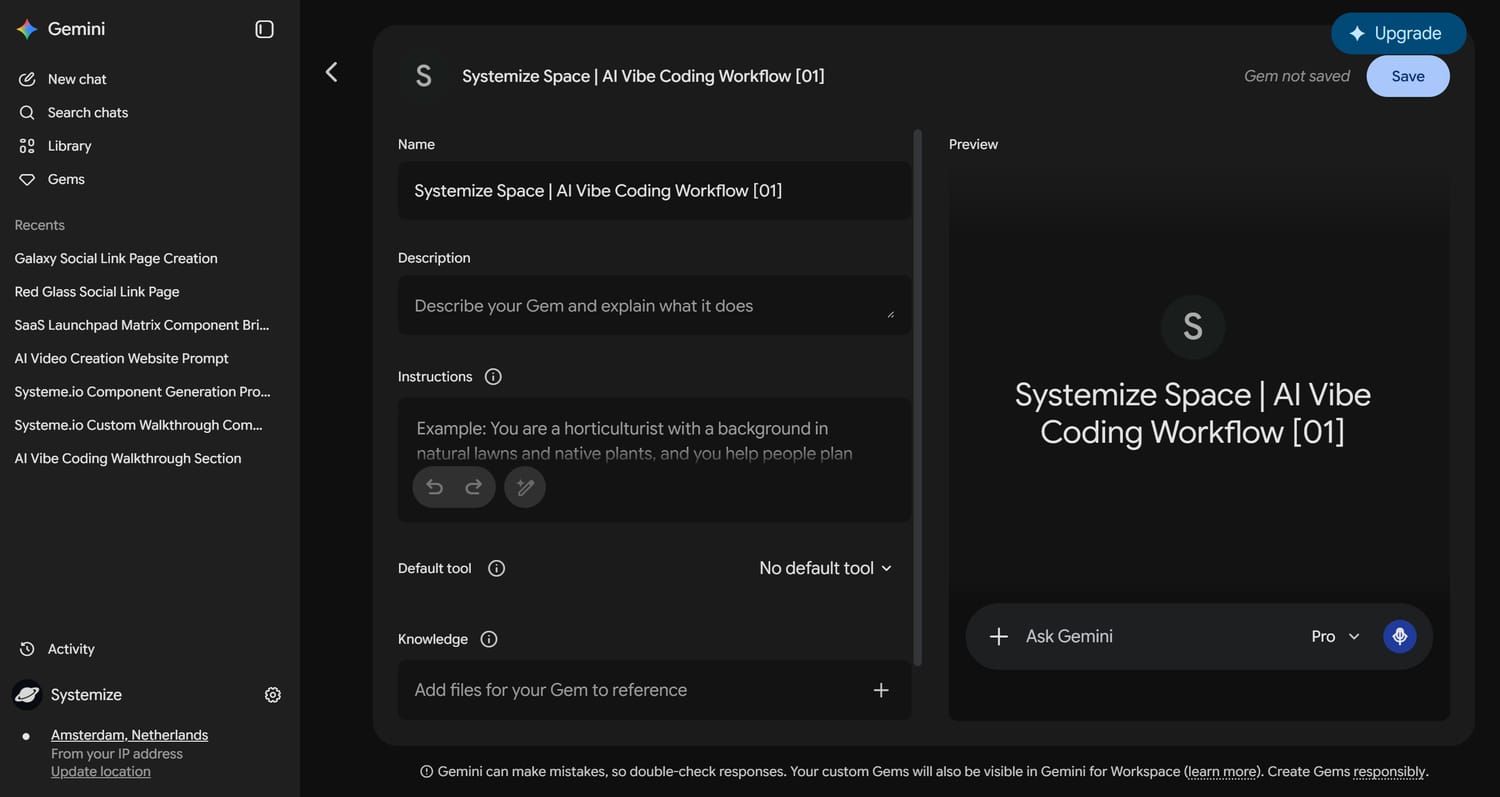
Go to Gemini, open Gems, and choose New Gem. You can also open gemini.google.com/gems/create directly, or search Google for create new Gemini Gem if the interface has moved.
Name your Gem
Use a clear project-based name like Your Project Safe Code Engine, My Systeme.io Code Engine, or Brand Name Page Builder Gem. The name should make it easy to remember what this assistant controls and when to use it.
Add a description
Example: Creates safe, clean, premium Systeme.io custom code and prompts using my Systemize Space Vault knowledge base.
Add Knowledge
In the Knowledge section, connect your NotebookLM notebook if that option is available, or upload the same Vault PDFs directly into the Gem.
Paste the Gem instructions
Use Vault Prompt 04 from the prompt library. It tells the Gem to follow the source rules, produce safe code, explain clearly, and include practical testing steps.
Gemini Gem Instructions
Purpose: turns Gemini into a reusable Systeme.io AI Code Architect that follows your private knowledge base, keeps code scoped, avoids unsafe dependencies, and returns testing instructions.
Use Vault Prompt 04 in the Vault prompt library.
Continue with the Vault prompt system
This workflow helps you understand the setup. The Vault prompt system gives you the complete copy boxes, setup flow, and reusable instructions for daily use.
Gem upgrade
Build the full Systeme.io AI Code Architect
Use the Vault prompt system when you are ready to turn the starter Gem into a stronger reusable assistant for pages, sections, prompts, and safe code review.
Open the VaultOutput library
What your Gem can create after setup
Once the Gem understands the Vault and your brand guide, it can help create almost every HTML, CSS, and JavaScript section you can safely use inside a Systeme.io raw HTML block.
Header Navigation
Responsive top navigation bars, menus, sticky headers, and simple mega-menu style layouts.
Hero Sections
High-converting hero banners with strong headlines, CTAs, trust lines, and premium visual rhythm.
Features & Grids
Modern product feature grids, benefit cards, icon blocks, and comparison-friendly layouts.
Pricing Tables
Pricing tiers, plan cards, comparison rows, guarantee notes, and conversion elements.
Testimonials
Reviews, social proof, client logos, quote cards, and credibility blocks.
Footer Sections
Bottom navigation, legal links, secondary CTAs, trust links, and brand closing sections.
Forms & FAQs
Opt-in form wrappers, newsletter captures, FAQ accordions, and objection-handling blocks.
Buttons & Elements
Micro-components like buttons, badges, lists, social links, separators, and highlight rows.
Call to Action
Dedicated CTA banners, final conversion blocks, urgency CTAs, and next-step sections.
About & Team
Founder bios, team cards, company stories, mission sections, and personal brand introductions.
Stats & Metrics
Number counters, data highlights, trust metrics, progress indicators, and proof rows.
Blog & Content
Article feeds, rich text layouts, documentation blocks, content hubs, and SEO/AIEO sections.
Steps & Timeline
How-it-works sections, timelines, process steps, onboarding flows, and walkthroughs.
Video & Media
Video embeds, image galleries, media cards, masonry-style layouts, and preview sections.
Guarantees & Trust
Guarantee boxes, badges, safety notes, security seals, trust strips, and credibility panels.
Products & Offers
Product cards, offer stacks, order-bump style blocks, bonuses, and value breakdowns.
Urgency & Countdowns
Timers, scarcity bars, limited-time banners, and launch reminder sections.
Portfolio & Work
Project showcases, galleries, past work, service examples, and visual proof.
Case Studies
Success stories, before/after sections, metrics, lessons, and client result layouts.
Announcements
Top bars, alert banners, update notices, release strips, and important page messages.
Contact & Location
Contact sections, location blocks, support cards, maps, and social connection areas.
The deeper lesson
This technique is not only for Systeme.io. Once you understand it, you can build many custom AI chats that act on the knowledge you feed them. Systeme.io safe code is one practical use case. Branding, content, products, client delivery, education, research, and operations can all use the same method.
Beginner FAQ
Beginner questions for Systeme.io AI Vibe Coding
What do I need before I start this workflow?
Start with the Systemize Space Vault files, a NotebookLM notebook, access to the Systemize Space HTML Editor, and a simple place to save notes such as Obsidian. You do not need to be an advanced developer. The workflow is built so beginners can understand the source rules first, then create and test code in smaller safer steps.
Why do we start with NotebookLM?
NotebookLM helps the AI read and organize your Vault files first. It becomes the brain of Level 1 because you can ask what each source means, what rules matter, and how the files work together before asking any model to write Systeme.io AI code.
What makes this different from a normal AI prompt?
A normal prompt starts from a blank chat. This workflow starts from private source knowledge, prompt rules, brand context, preview testing, and reusable notes. That is why it can become a real Systeme.io AI workflow instead of one lucky output that is hard to repeat.
What does Systeme.io-safe code mean here?
It means the code is meant for a raw HTML block, uses scoped classes, avoids full page wrapper tags, avoids random external dependencies, keeps JavaScript restrained, and is previewed before it touches your live Systeme.io page.
Why test in the Systemize Space HTML Editor?
The HTML Editor gives you a live preview before you paste anything into Systeme.io. This helps you catch broken layout, weak spacing, mobile issues, oversized sections, unclear CTAs, or code that needs one more improvement pass.
When do I paste code into Systeme.io?
Only paste the code into a raw HTML block in Systeme.io after you are happy with the live preview and you understand how to remove the code if needed.
Why save prompts and code in Obsidian?
Your local Obsidian vault becomes your own reusable operating system. Save the final prompt, final tested code, where it was used, what it created, and what you would improve next time. That turns one good output into a repeatable library for future Systeme.io pages and sections.
When should I create the Gemini Gem?
Create the Gem after NotebookLM has helped you understand the Vault and after you have tested a few outputs. The Gem is Level 2: it turns the working process into your private Systeme.io AI Code Engine instead of forcing you to rebuild the same context in every new chat.
Can I use ChatGPT, Claude, Qwen, Manus, or another AI model too?
Yes. NotebookLM can create a stronger universal prompt that you paste into another model. Gemini is the example in this workflow because Gems can become reusable assistants, but the source-first method also improves work in other AI chat models.
Where does my brand guide fit?
The Vault teaches the AI how to build. Your brand guide teaches the AI how your business should feel. Uploading both into NotebookLM makes the output more specific, more consistent, and less generic before you scale pages, funnels, offers, and client work.
Is Systeme.io AI Workflow the right topic?
Yes. This page uses the official Systeme.io name while making the search intent clear for beginners who are looking for AI workflows, AI Vibe Coding, and safer custom code inside Systeme.io.
Can this create perfect code every time?
No. It creates better starting points and safer outputs, but you still need to test, preview, improve, and save versions. The power is in the workflow: source knowledge, better prompts, live preview, brand rules, and reusable assistants working together.
Official references
Google documentation behind the workflow
Google product features can change, so always check the current Gemini and NotebookLM interface when teaching this to students.
NotebookLM sources
Notebooks in Gemini
Systemize Space is built by Alp as a practical learning space for safer AI-assisted web creation. Systemize your web. Own your space.
This page is educational documentation. Always test AI-generated code in the Systemize Space HTML Editor before pasting it into Systeme.io. Vault files are private member assets: do not share, publish, expose, or make them accessible outside your own private workspace.
Copyright Systemize Space. All rights reserved. www.systemize.space